VTT to SRT Converter (WebVTT to SRT)
Paste or open one or many WebVTT (.vtt) files and download SubRip (.srt) files that play in any video player or editor.
This free VTT to SRT converter turns WebVTT subtitle files (.vtt) into SRT (SubRip) files. Paste the text of a VTT file or open one from your computer, and the SRT result appears straight away. The conversion runs in your browser, so nothing you open is uploaded, and no sign-up is needed.
You can also convert several files in one go, which helps when you have a whole series of captions to change. SRT is a plain-text subtitle format that many video players and editors accept. The result keeps the cue text and timing, while cue settings, styles and comments are left out.
How to use the VTT to SRT converter
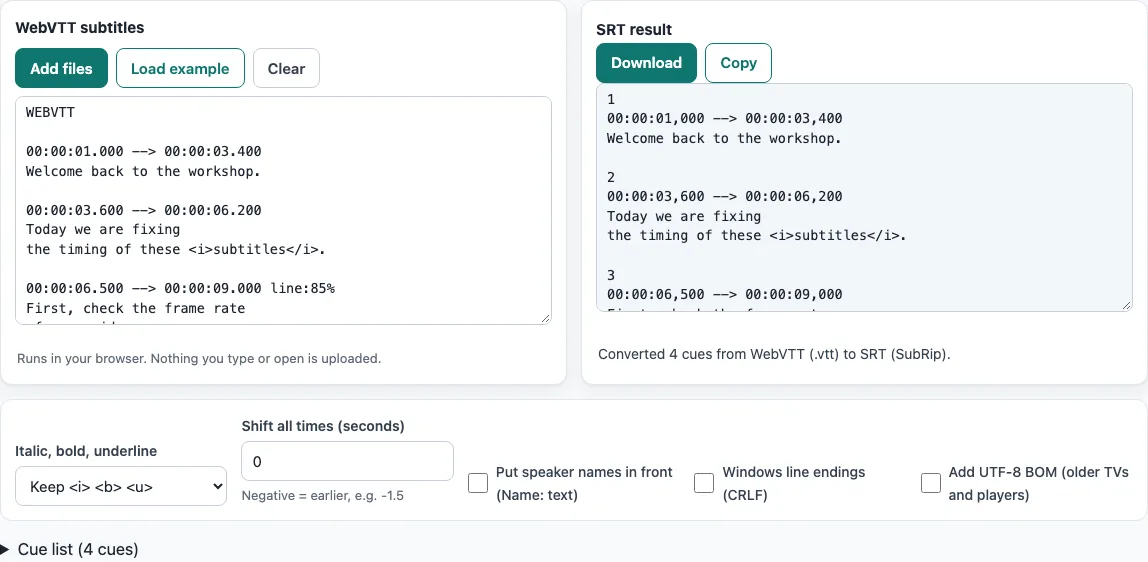
The page opens with a short workshop scene already loaded, and its SRT result is already shown, so you can see what to expect before you add your own file.
- Click Add files to choose one or more
.vttfiles. You can also drop a file onto the WebVTT subtitles box or paste VTT text into it. - If you added two or more files, check the Converted files list. Each file shows its cue count and its own Download button.
- Read the one-line status, such as “Converted 4 cues from WebVTT (.vtt) to SRT (SubRip).” If a Notes list appears, read it, because it lists anything that was fixed or skipped.
- Check the SRT result box. To compare times line by line, open the Cue list table, which shows the start, end, seconds and text of the first 300 cues.
- Change the options if you need to: Italic, bold, underline, Shift all times (seconds), Put speaker names in front (Name: text), Windows line endings (CRLF) or Add UTF-8 BOM (older TVs and players). The last three of these are off by default.
- Press Download to save the file, or Copy to copy the text.
The downloaded file takes the name of your opened file with the .srt extension, and pasted text is saved as subtitles.srt. Your settings stay in the page address, so a link to the page reproduces them.
What happens to cue settings, styles and comments?
When you convert WebVTT to SRT, the tool drops cue settings, comment blocks, style blocks and region blocks. SRT has no standard place to store them, so only the cue text and timing are written to the new file.
In WebVTT, each cue can end its timing line with settings such as align, line, position, size, vertical or region. A NOTE block is a comment that players ignore. A STYLE block holds CSS and sits before the first cue, and a REGION block defines an area on screen. None of these exist in SRT, so the tool removes them, along with cue identifiers.
An SRT cue is simpler: a number line, a timing line with a comma before the milliseconds, one or more text lines, and a blank line. The tool numbers the cues from 1.
Tags are handled with the Italic, bold, underline setting. The default, Keep <i> <b> <u>, keeps <i>, <b> and <u> and removes every other tag. The tool also removes <c>, <v>, <lang>, <ruby> and <rt> tags but keeps their text, and it removes karaoke timestamp tags. Character codes such as &, <, > and are turned back into normal characters.
For example, this WebVTT cue, with an identifier, settings, a voice tag and a character code:
intro
00:01.000 --> 00:02.500 align:start line:10%
<v Bob>Hi & <i>bye</i></v>
line two
becomes this SRT cue:
1
00:00:01,000 --> 00:00:02,500
Hi & <i>bye</i>
line two
Why does my VTT have no hours (02:03.456)?
Hours are optional in WebVTT, so 02:03.456 means 2 minutes and 3.456 seconds. The tool reads that time and writes it with two-digit hours, as 00:02:03,456, because SRT timing lines always show hours.
A WebVTT timestamp follows the pattern [hours:]mm:ss.ttt. Minutes and seconds are two digits from 0 to 59, and the milliseconds are exactly three digits after a full stop. SRT uses a comma instead of the full stop. For example, 00:01.000 --> 00:02.500 becomes 00:00:01,000 --> 00:00:02,500.
If a time in your file uses a comma where WebVTT expects a full stop, the Notes list says so and the time is read anyway. After a negative Shift all times (seconds) value, a cue that starts before 0:00 is moved to 0:00 and a cue that ends before 0:00 is removed. The status line says how many cues were affected.
Frequently asked questions
Can I convert several VTT files at once?
Yes. After you press Add files and choose two or more files, the Converted files list shows each file with its cue count and a Download button. Download all saves one file for each converted file. The same options apply to every file.
What happens to speaker names?
By default, the voice name is removed and only the spoken text remains. If you tick Put speaker names in front (Name: text), a line such as <v Bob>Hello becomes Bob: Hello.
Is it free?
Yes. The tool is free and needs no sign-up, and there is no limit on the number of files.
Is my file uploaded?
No. Everything runs in your browser, and the line under the text box says “Runs in your browser. Nothing you type or open is uploaded.”
What about accents, Chinese or Japanese text?
UTF-8 and UTF-16 files are read correctly, with or without a byte order mark, and the SRT file is written as UTF-8. If the SRT file does not display correctly on an older TV or player, try ticking Add UTF-8 BOM (older TVs and players).
What do the items in the Notes list mean?
The Notes list appears when the tool fixes or skips something in your file. It can report a missing WEBVTT header (which it adds when reading), a comma used instead of a full stop, overlapping cues, cues out of order, or empty cues.
Related tools
- Subtitle converter: Use this when your file is in a different subtitle format and you need to convert it to another one.
- SRT to VTT converter: Use this when your player needs a WebVTT file and you have an SRT file.
- SBV to SRT converter: Use this when your captions are in SBV format and you want SRT.
- ASS to SRT converter: Use this when your subtitles are in ASS format and you want plain SRT.
- TTML to SRT converter: Use this when your captions are in TTML format and you want SRT.
- Subtitle file formats compared: Read this to see how the main subtitle formats differ before you choose one.
- SRT file format and checker: Use this to learn how SRT files are structured and to check one for errors.
- Subtitle shifter: Use this when the subtitles are correct but start too early or too late.