Video Bitrate Calculator
Turn a target file size and a duration into the video bitrate to encode with, copy the ffmpeg two-pass command, or measure the bitrate of a file you have.
This video bitrate calculator works out the video bitrate you need to fit a file into a target size, and it writes the matching two-pass ffmpeg command for you. It covers the whole video bit rate calculation, from the file size and length to the command, so you can calculate the bitrate of a video for an upload limit or a storage budget.
The tool can also read the average bitrate of a video you already have, and it shows bits per pixel for a resolution and frame rate you choose. Use the first section for a target size, the second for an existing file and the third for bits per pixel.
Everything runs in your browser. The videos you open are never uploaded, there is no sign-up, and the tool is free.
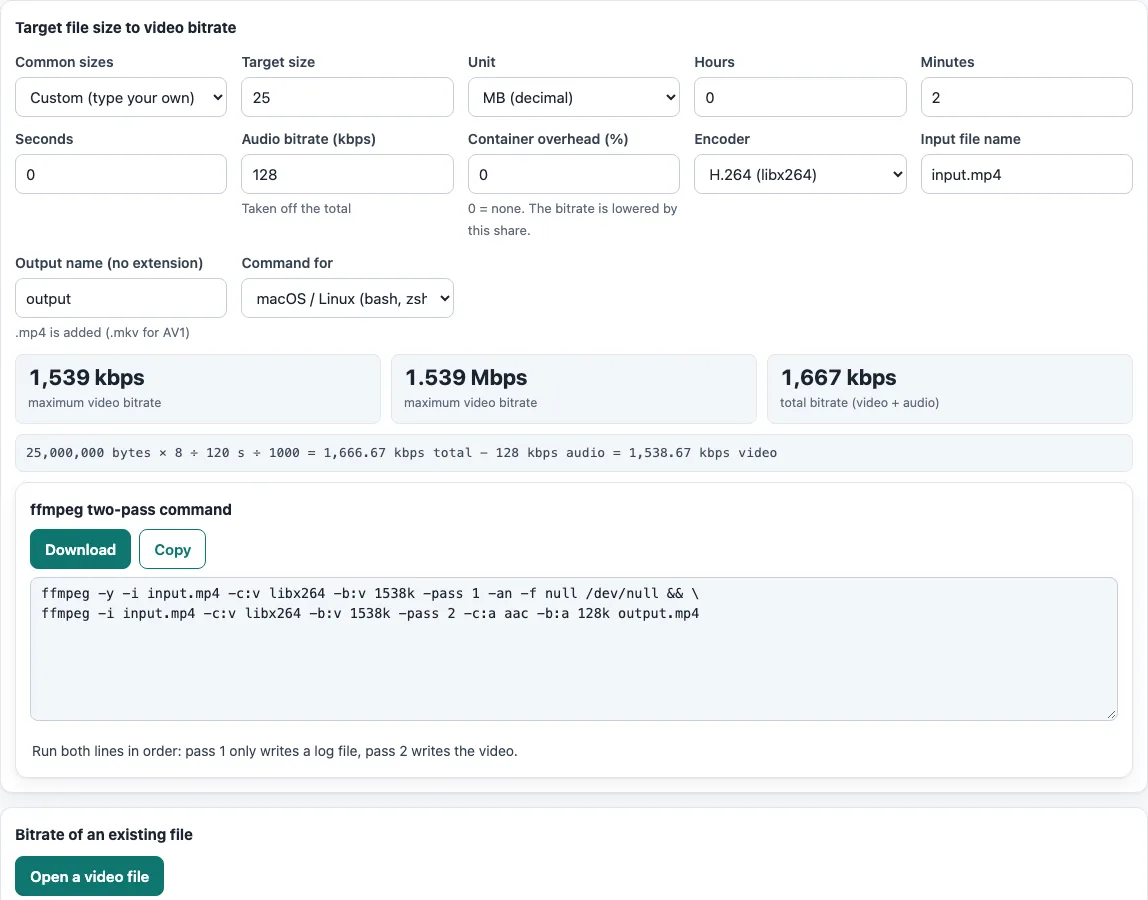
How to use the video bitrate calculator
Start with the first section, “Target file size to video bitrate”.
- Pick a value from “Common sizes” (25 MB, 100 MB, 500 MB, 1 GB, 2 GB or 4 GB), or type your own number into “Target size”. The default is 25.
- Set “Unit” to “MB (decimal)”, “MiB (binary)”, “GB (decimal)” or “GiB (binary)”.
- Enter the clip length in “Hours”, “Minutes” and “Seconds”. The defaults are 0, 2 and 0.
- Check “Audio bitrate (kbps)” (128 by default) and “Container overhead (%)” (0 by default). The overhead lowers the video bitrate to leave room for it.
- Choose an “Encoder”: “H.264 (libx264)”, “H.265 / HEVC (libx265)” or “AV1 (libaom-av1)”.
- Type your names into “Input file name” (
input.mp4) and “Output name (no extension)” (output). The tool adds.mp4, or.mkvfor AV1. - Choose your system under “Command for”: “macOS / Linux (bash, zsh)”, “Windows Command Prompt” or “Windows PowerShell”.
- Read the maximum video bitrate in kbps and Mbps, the total bitrate and the formula. Under “ffmpeg two-pass command”, press “Copy” or “Download” to get the two lines.
If the audio alone uses the whole budget, the tool says so and shows no command.
For an existing file, use “Bitrate of an existing file”. Press “Open a video file”, or type a “File size”, a “Unit” and a length. For bits per pixel, pick a “Resolution preset” or enter “Width (px)” and “Height (px)”, then set “Frames per second” and “Video bitrate (kbps)”. The button “Use the video bitrate from the first section” copies the result of section 1 into that field.
How do I calculate a video bitrate for a file size?
Divide the file size in bits by the length in seconds, then subtract the audio bitrate. The result is the video bitrate in kbps, using total kbps = file size in bits ÷ seconds ÷ 1000.
For 25 MB (25,000,000 bytes, or 200,000,000 bits) over 120 seconds, the total is 1,666.67 kbps. Subtracting 128 kbps of audio leaves 1,538.67 kbps for video, which the command rounds down to 1538k.
MiB and GiB use binary sizes. The ffmpeg wiki converts 1 MiB to 8388.608 kBit, not 8192, because 1 kBit is always 1000 bits. For 200 MiB over 600 seconds, that gives about 2796 kBit/s total and 2668 kBit/s for video after 128 kBit/s of audio. The tool gives the same two numbers for that input.
How do I find the bitrate of a video I already have?
Divide the file size in bits by the length, then convert the result to kbps. In “Bitrate of an existing file”, the tool reads the size from the file and the length from the browser’s video metadata, and fills the fields. If the browser cannot report a length, type it yourself. The file is read on your device and is not uploaded.
The result is the average bitrate of video, audio and container together. The tool also shows roughly the video part after subtracting the audio bitrate from section 1. For example, 100 MB over 5 minutes is 2,666.67 kbps.
What is bits per pixel?
Bits per pixel is the number of bits a video spends on each pixel in each frame. It equals bitrate ÷ (width × height × frames per second). For 8000 kbps at 1920 × 1080 and 30 fps, that is 8,000,000 ÷ 62,208,000 = 0.1286.
For heights that match a named resolution, the tool shows the same figure for the bitrates YouTube recommends for uploads at that height and frame rate. Those values are derived from YouTube’s published numbers, checked 2026-10-13. The tool gives no quality verdict, because there is no sourced threshold for one.
H.264, H.265 or AV1 bitrate calculator?
The size-to-bitrate maths is the same for all three codecs. A codec does not change how many bits fit into the file, only how good they look, and that is not computed here. The “Encoder” you choose changes the ffmpeg flags. H.264 uses -pass 1 and -pass 2 with libx264. H.265 with libx265 uses -x265-params pass=1 and -x265-params pass=2, because -pass does not apply to it. AV1 uses libaom-av1, writes Opus audio with libopus and saves to .mkv. AV1 with libaom is slow.
Two-pass encoding runs ffmpeg twice. Pass 1 writes a log file, sends its video to a null output and leaves out audio with -an. Pass 2 writes the real file with the same video bitrate and your audio bitrate as -b:a. On Windows the tool uses NUL in place of /dev/null. In Command Prompt the first line ends with && ^. In PowerShell you get two plain lines to run one after the other.
Frequently asked questions
What is the ffmpeg command for a 25 MB limit?
For 25 MB over 2 minutes with 128 kbps audio, the video bitrate is 1538k. In bash or zsh, with input.mp4 and output.mp4 as file names, the two lines are:
ffmpeg -y -i input.mp4 -c:v libx264 -b:v 1538k -pass 1 -an -f null /dev/null && \
ffmpeg -i input.mp4 -c:v libx264 -b:v 1538k -pass 2 -c:a aac -b:a 128k output.mp4
Why is the final file slightly larger than the target?
Two-pass encoding lands near the target, not exactly on it. In our runs (ffmpeg 7.1.1, a 12-second 640×360 clip with a 696,000-byte target), H.264 finished 1.9 % over, H.265 1.5 % over and AV1 3.9 % over. If a hard limit applies, leave a margin, for example with “Container overhead (%)”.
What if the audio alone uses the whole budget?
The tool says so and shows no command. Lower “Audio bitrate (kbps)”, or raise “Target size” or the length, so that some budget is left for video.
Which output extension should I use?
Use .mp4 for H.264 and H.265. For AV1, the tool’s output name uses .mkv.
Is MB the same as MiB here?
No. MB is 1,000,000 bytes and MiB is 1,048,576 bytes. A limit given in MB is smaller than the same number in MiB, so choose the “Unit” your upload limit uses.
Related tools
- Video file size calculator: use it when you already know the bitrate and want to estimate the file size.
- 1080p bitrate: use it to see the bitrates YouTube publishes for 1080p video.
- Add subtitles to video: use it to preview subtitles on your video and get the ffmpeg command that adds them.
- Frame rate converter: use it when subtitle timing does not match the frame rate of your video.
- Extract subtitles from MP4: use it when you need the subtitle track out of an MP4 file.