TXT to VTT Converter
Paste text or open a .txt file and get a timed WebVTT (.vtt) subtitle file. Timing comes from a reading speed, a video length you enter, or timestamps in the text.
The TXT to VTT tool turns plain text into timed WebVTT subtitles. You add your text, and the tool writes a .vtt file with a start and end time for each line, ready to load with an HTML5 video. It runs in your browser, is free, and needs no sign-up.
You do not have to type any timestamps, because the tool estimates the timing from how long each line takes to read. The engine and controls match the TXT to SRT converter, and the only visible difference is the output: a WebVTT file instead of an SRT file. Timing is an estimate, so check the result against your video before you publish it.
How to use the TXT to VTT converter
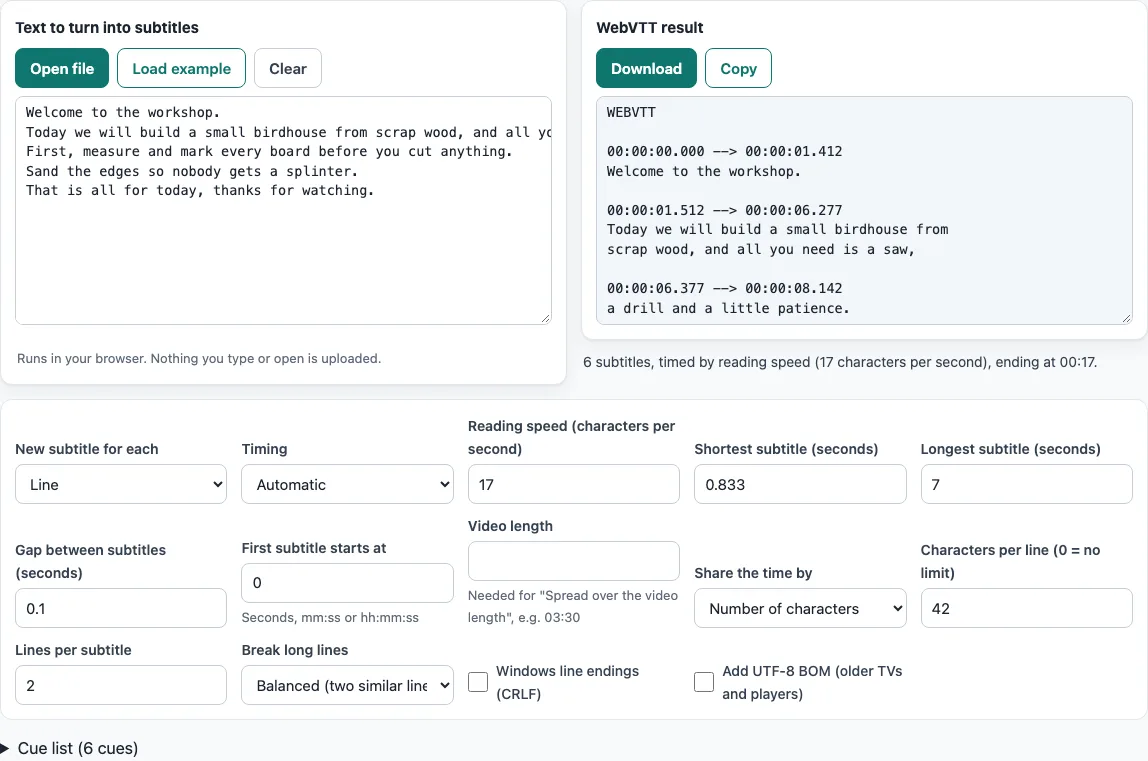
- Add your subtitle text to the Text to turn into subtitles box. Paste it, drag a file into the box, or click Open file to choose a
.txt,.textor.mdfile. Click Load example to see how it works first. - Check New subtitle for each. It is set to “Line” by default, so each line becomes its own cue. Choose “Paragraph (blank-line separated)” or “Sentence” for other splits.
- Leave Timing on “Automatic” unless you know what you want. It uses timestamps at the start of your lines when the text has them, and reading speed otherwise. To fit the cues to a video, choose “Spread over the video length” and enter Video length.
- Read the WebVTT result box. The first line should be
WEBVTT, followed by a blank line and then your cues. - Check the timestamps. Each one should use a full stop before the milliseconds, for example
00:00:00.882. - Tick Windows line endings (CRLF) or Add UTF-8 BOM (older TVs and players) only if the program that will play your file needs them. Both are off by default.
- Click Download to save the file as a
.vttfile, or Copy to copy the text. The file is named after the file you opened, orsubtitles.vttfor pasted text.
The options are the same as on the TXT to SRT converter. The only changes are the WebVTT result box and the .vtt file type.
How do I convert TXT to VTT?
Paste or add your plain text into the tool, and it writes a WebVTT file with timings for each line. Without timestamps in your text, the timings come from a reading speed of 17 characters per second, so you do not need to work out start and end times yourself.
Take the input Hello everyone. followed by This is the second line. The first line has 15 characters, and 15 divided by 17 is 0.882 seconds. The first cue is therefore 00:00:00.000 --> 00:00:00.882. The next cue starts after a 0.1 second gap at 00:00:00.982. The second line has 24 characters, and 24 divided by 17 is 1.412 seconds, so it ends at 00:00:02.394.
How do I convert text to VTT for an HTML5 video?
Save the output as a .vtt file, then point a <track> element at that file inside your <video> element. The track tells the browser where to find the captions.
<video controls>
  <source src="movie.mp4" type="video/mp4">
  <track kind="subtitles" src="captions.vtt" srclang="en" label="English" default>
</video>
Keep the .vtt file in a location your page can reach, and make sure the server sends it as text/vtt.
Does the text need timestamps?
No. Plain text is enough, because the tool calculates the timestamps for you. Each cue is sized from the number of characters and the reading speed. If your lines already start with times such as 00:01:02 or [00:01:02.500], “Automatic” timing uses them as start times instead. The tool’s defaults are 42 characters per line, two lines per cue, 17 characters per second, and a 7 second maximum per cue. These defaults come from the Netflix subtitle guides. They are guidance from one platform, not part of the WebVTT format.
What is the difference between SRT and VTT?
SRT and VTT both store timed subtitle text, but they use different layouts. An SRT file has a number before each cue and uses a comma before the milliseconds, as in 00:00:01,000. A VTT file starts with the word WEBVTT, has no required cue numbers, and uses a full stop before the milliseconds, as in 00:00:01.000.
VTT also has stricter escaping rules. A literal & in your text is written as &, and --> inside text is written as -->. The W3C WebVTT format also requires UTF-8 encoding, and the file should be served as text/vtt. The hours in a WebVTT timestamp are optional in the format, but this tool always writes them.
Frequently asked questions
Is it free, and are my files uploaded?
Yes, the tool is free and needs no sign-up. Everything runs in your browser, and the subtitle files and videos you open are never uploaded.
Can I use the VTT file commercially?
Yes. The subtitle files you make here are yours to use for any purpose, including commercial and client work. No attribution is needed.
Does the tool transcribe speech or translate text?
No. The tool does not do speech recognition and does not translate your text. It only sets the timing for the text you provide, and the timing is an estimate. For exact sync, adjust the file afterwards.
Why do some characters look different in my file?
Characters that WebVTT does not allow in plain form are written in a safe form so the file stays valid. & becomes &, and --> in your text becomes -->. A player shows these as the original characters.
Do I need the UTF-8 BOM or Windows line endings?
Usually not. Both options are off by default, and you only need them if the program that opens your file requires them. The file is written as UTF-8 either way.
How long should a cue be?
The defaults are 42 characters per line, two lines, and 0.833 to 7 seconds per cue. You can change them with Characters per line (0 = no limit), Lines per subtitle, Shortest subtitle (seconds) and Longest subtitle (seconds). Text that does not fit is cut into several cues.
Related tools
- TXT to SRT converter: use this when your player or editor expects SRT instead of VTT.
- SRT to TXT transcript: use this to turn an existing subtitle file back into plain text.
- Subtitle maker: use this to build subtitles from scratch.
- Online SRT editor: use this to fix or adjust cue text and timing in an SRT file.
- SRT file format and checker: use this to check whether an SRT file follows the standard layout.
- Subtitle converter: use this to find the right conversion for your subtitle file.