Convert a TXT File to SRT (Text to SRT)
Paste text or open a .txt file and get a timed SRT subtitle file. Timing comes from a reading speed, a video length you enter, or timestamps already in the text.
This TXT to SRT converter turns a plain text file into a timed SRT subtitle file. Open a .txt file, paste your text, or drag a file into the input box, and the tool splits the text into numbered subtitles with start and end times, ready to download as a .srt file.
It runs in your browser. Subtitle files and videos you open are never uploaded, there is no sign-up, and the tool is free. You can use it to convert txt to srt, convert a txt file to srt, or make a text to srt file without installing anything.
The output follows the common SRT layout, and you can adjust how the text is split and timed before you download.
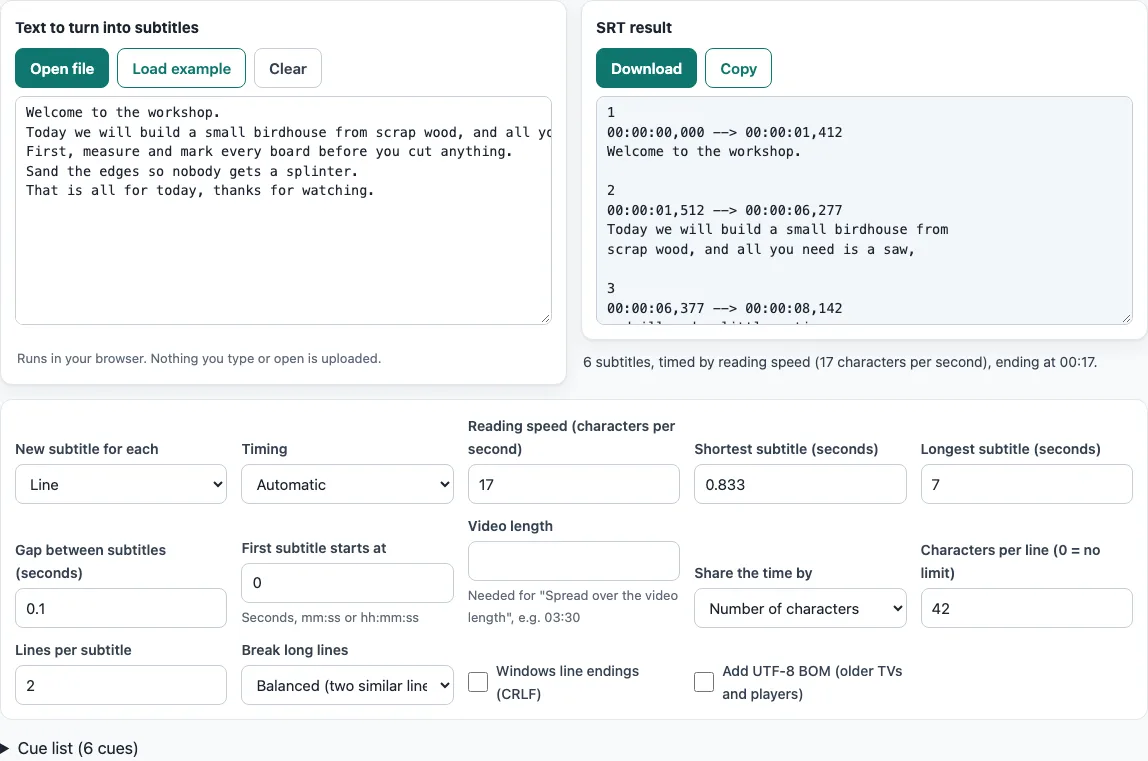
How to use the TXT to SRT converter
- Load your text. Paste it into the Text to turn into subtitles box, click Open file to choose a
.txt,.textor.mdfile, or drag the file into the box. To see how it works first, click Load example. - Choose how text is split under New subtitle for each: “Line” (the default), “Paragraph (blank-line separated)”, “Sentence”, or “As much as fits (sentences packed)”.
- Pick a Timing mode. “Automatic” is the default: it uses timestamps when your text has them and reading speed otherwise. “Reading speed” always times by characters per second. “Spread over the video length” fits all subtitles into the length you enter under Video length, such as
03:30. “Timestamps in the text” requires times at the start of lines. - Check Characters per line (0 = no limit) (default 42) and Lines per subtitle (default 2). Text that does not fit is cut into several subtitles.
- Read the SRT result box, the status line, the “N notes on the result” message if one appears, and the Cue list table.
- Click Download to save the file, or click Copy to copy the text.
The result updates while you type or change an option. Every option is kept in the page address, so you can share a link that reproduces your settings. The downloaded file is named after the file you opened with .srt, or subtitles.srt for pasted text. Click Clear to empty the input box.
Is a TXT file the same as SRT?
No. A TXT file is plain text with no timing information. An SRT file is a subtitle file that stores each piece of text with a start time and an end time, so a video player knows when to show it. SRT has no formal specification, but the common layout is a number, a time line in the form hh:mm:ss,mmm --> hh:mm:ss,mmm, the text lines, and a blank line. This tool writes exactly that layout, in UTF-8, numbered from 1.
Does the text need timestamps?
No. If your text has no timestamps, the tool estimates the timing from reading speed. It counts the characters in each subtitle, including spaces and punctuation, and divides by the Reading speed (characters per second) value, which defaults to 17. For example, “Welcome to the workshop.” has 24 characters, so it lasts 24 / 17 = 1.412 seconds.
The result is then kept between the Shortest subtitle (seconds) value (default 0.833) and the Longest subtitle (seconds) value (default 7). Subtitles are separated by a Gap between subtitles (seconds) of 0.1 by default, which is our own choice rather than a source value.
If your text does have timestamps, “Automatic” mode uses them. The tool recognises formats such as 00:01:02 text, [00:01:02.500] text, (1:02) text, 1:02 - text, and the YouTube transcript layout, where a time stands alone on its line and the text follows. Each subtitle then ends 0.1 seconds before the next one starts, and the last one gets a reading-speed duration.
The estimate is not speech recognition. The tool cannot hear when words are spoken, so for exact sync, adjust the file afterwards with the subtitle shifter or the online SRT editor.
The defaults match the Netflix English (USA) Timed Text Style Guide: 42 characters per line, a maximum of two lines, 5/6 of a second minimum, and 7 seconds maximum per subtitle. The reading speed of 17 characters per second is the guide’s limit for children’s programs, and it stays under the adult limit of 20. These are streaming-platform guidelines, not requirements of the SRT format.
Frequently asked questions
How do I convert a TXT file to SRT?
Open the file with Open file or drag it into the input box, choose your splitting and timing options, then click Download. The file is named after your original file with .srt, or subtitles.srt if no file was opened.
Can I make an SRT file from text for a video I already have?
Yes. Choose “Spread over the video length” under Timing and enter the length under Video length. The subtitles then fill the time from First subtitle starts at to that length, and the last one ends exactly at the video length. The result is an estimate: if the speech is not evenly spread, shift or retime the file afterwards.
Can it convert text to VTT?
This page writes SRT only. For WebVTT output, use the TXT to VTT converter, which has the same options.
How can I convert a text file to SRT on a Mac, on Windows, or online?
The tool runs in your browser, so the same steps work on any system with a current browser. Nothing needs to be installed, and no sign-up is required.
How long should a subtitle be?
Set the length with Shortest subtitle (seconds) and Longest subtitle (seconds). For line length, keep Characters per line (0 = no limit) at 42 and Lines per subtitle at 2, which are the Netflix guideline values. Text that does not fit is split into several subtitles automatically.
Can I use the subtitle files commercially?
Yes. The subtitle files you make here are yours to use for any purpose, including commercial and client work, and no attribution is needed.
Related tools
- TXT to VTT converter: Use this when your player or platform needs WebVTT instead of SRT.
- SRT to TXT transcript: Use this to pull the plain text back out of an SRT file.
- Subtitle maker: Use this to create subtitles when you want a different workflow.
- Online SRT editor: Use this to change text or timings in an SRT file after it is made.
- SRT file format and checker: Use this to learn the SRT layout or check a file’s structure.
- Subtitle converter: Use this to convert between subtitle formats.