Subtitle Shifter: Fix Subtitles That Are Out of Sync
Move every subtitle earlier or later, shift part of the file, or fix drift with a two-point sync. Works on SRT, VTT, SBV, ASS and TTML.
Subtitle shifter is a free tool that moves the timing of every subtitle cue in a file earlier or later, so the text lines up with your video again. It fixes subtitles that are out of sync by a fixed amount, by a shift from a certain point onward, or by a speed drift. The tool runs in your browser. Your subtitle files and videos are never uploaded, and there is no sign-up.
You can paste subtitle text, open a file, or drop one onto the page. Then choose how to shift the timing. The result can be saved in the same format as the input or as SRT, VTT, SBV, ASS, or TTML.
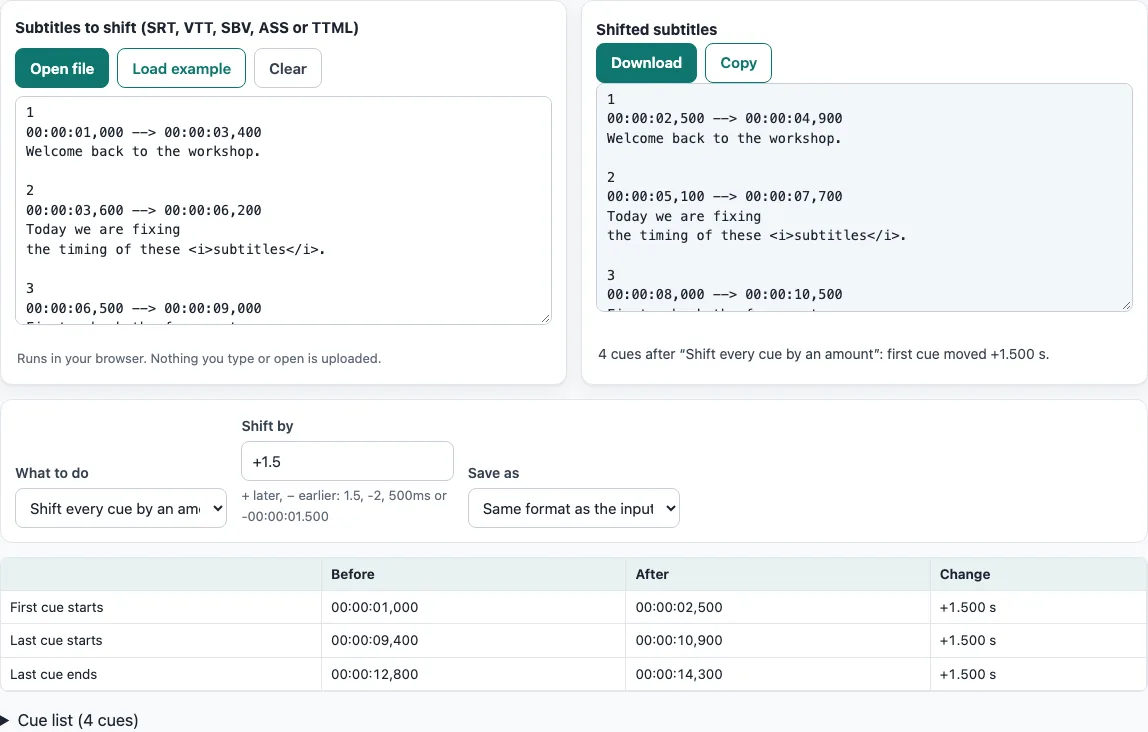
How to use the Subtitle shifter
- Add your subtitles to the “Subtitles to shift (SRT, VTT, SBV, ASS or TTML)” box. Paste the text, click “Open file”, drop a file onto the box, or click “Load example”.
- Under “What to do”, choose one of the five modes.
- For “Shift every cue by an amount”, type a value in “Shift by”. Use
+1.5to move subtitles later and-2to move them earlier. Values such as500msand-00:00:01.500work too. - For “Shift only cues N to M”, fill in “From cue number” and “To cue number” (0 means the last cue), then “Shift by”.
- For “Shift everything from a time onwards”, enter a time in “Cues starting at or after”, then “Shift by”.
- For “First line should appear at”, enter the time in “First cue starts at”. Every cue moves by the difference between that time and the current start of the first cue.
- For “Two-point sync (offset and drift)”, fill in “Cue A number” and “Cue A should start at”, then “Cue B number (late in the file)” and “Cue B should start at”. The page shows the stretch factor.
- Choose a format in “Save as”. The default, “Same format as the input”, keeps the format.
- Check the summary and the before/after table, then click “Download” or “Copy” in the “Shifted subtitles” box.
The output file keeps the opened file name with the extension of the output format, so an SRT stays movie.srt. Keep a copy of the original before you overwrite it.
How to fix subtitles out of sync
Subtitles that are out of sync by the same amount throughout have a constant offset. Find how far off one line is, then shift every cue by that difference. Use “First line should appear at” to do this quickly: type the time the first line should show, and every cue moves by the same amount. If the first line is not a good reference, use “Shift every cue by an amount” with the difference you measured.
For example, if the first line should appear at 5 seconds but starts at 1.000, the offset is +4.000 seconds. The cues then start at 5.000, 7.600, 10.500, and 13.400 instead of 1.000, 3.600, 6.500, and 9.400.
How do I delay subtitles or adjust subtitle timing?
Delaying subtitles means moving them later, so a positive shift such as +1.5 is used. A negative shift moves them earlier. Each cue keeps its length, so its end time moves by the same amount as its start time.
If a shift moves a cue before zero, the tool clips it. For example, shifting by -1.5 seconds moves cue 1 from 00:00:01,000 --> 00:00:03,400 to a start of -0.5. That start is set to 00:00:00,000, and the end becomes 1.900. Cues that end before zero are removed. The summary counts both clipped and removed cues.
How do I adjust subtitle timing in an SRT file?
Each SRT cue has a timing line, such as 00:00:01,000 --> 00:00:03,400, followed by the text. Shifting changes only the two times on the timing line. The text and the cue numbers stay as they are.
To shift a part of the file only, use “Shift only cues N to M” or “Shift everything from a time onwards”. This is useful when the timing is correct at the start but wrong from some point on, for example after a cut or an inserted scene. If the error grows steadily instead, use two-point sync below.
Why do subtitles drift more and more, and how do I sync them to video?
When the gap between subtitles and video grows over time, the error is a speed difference, not a constant offset. Two-point sync fixes both problems at once. Choose an early cue (A) and a late cue (B), then enter the times they should start at.
The page shows the current times of cue A and cue B and, once you enter both targets, the stretch factor and the drift in seconds per hour of subtitles. The tool maps every time with this formula: tA + (t − A.start) × (tB − tA) / (B.start − A.start). For example, if cue 1 should start at 00:00:02,000 and cue 4 should start at 00:00:18,800, the stretch factor is (18.8 − 2) / (9.4 − 1) = 2.000000. Cue 2 moves from 3.600 to 7.200, cue 3 from 6.500 to 13.000, and cue 4 ends at 25.600 instead of 12.800.
Drift caused by a frame-rate difference, such as 23.976 fps versus 25 fps, has a different cause. The Frame Rate Converter page applies a fixed ratio for that case. Two-point sync can also find that ratio from two cues.
Frequently asked questions
Does it change my video?
No. The tool works on the subtitle file, and the output is a subtitle file. Your video is not part of the output.
How do I adjust subtitle delay in VLC?
During playback, press h to delay the subtitles (show them later) or g to show them earlier; each press changes the delay by 50 ms. You can also open Tools > Track Synchronization and set the delay there. A delay set in the player is a playback setting for that session. To make the change permanent, shift the file here instead.
How do I adjust subtitle delay in mpv?
In mpv, the default keys z and Z change the subtitle delay by -0.1 and +0.1 seconds. As in VLC, this lasts only for that session.
Which time formats can I type?
In “Shift by” you can use seconds (1.5, -2), milliseconds (500ms), seconds with a unit (-0.25s) or clock times (-00:00:01.500, +1:02,5). Fields that ask for a time, such as “Cues starting at or after”, take hh:mm:ss,mmm or plain seconds. If a value is not understood, the page says so and shows examples.
Does shifting keep the styling?
ASS and TTML styling is not kept: those files are rewritten with simple defaults. For WebVTT in and WebVTT out, the header, NOTE and STYLE blocks are kept.
Is my subtitle file uploaded anywhere?
No. Everything runs in your browser, and the subtitle files and videos you open are never uploaded.
Will cues be removed when I shift them earlier?
Yes, but only when a cue ends before zero after a shift. Cues that start before zero are set to start at zero instead. The summary line counts both kinds of change.
Related tools
- Online SRT editor: Use it when you need to change the text or cues of an SRT file, not just the timing.
- Subtitle maker: Use it when you need to create subtitles from scratch.
- Subtitle frame rate converter: Use it when subtitles drift because the video and subtitle frame rates differ by a fixed ratio.
- SRT file format and checker: Use it to learn how SRT files are structured or to check one for errors.
- Adding subtitles to video (MP4): Use it to preview an SRT on your video and copy the command that adds it.
- Subtitle converter: Use it when you need to change a subtitle file to another format.