Subtitle Maker Online (Free SRT File Maker)
Paste your script, play your video and tap a key as each line starts: you get a timed SRT or VTT file, with nothing uploaded.
Subtitle maker is a free online tool that makes an SRT file from your script and your video timing. You can type or paste your lines, then tap along to a video, time them by reading speed, or type the times yourself. The result can be saved as SRT, WebVTT, SBV, ASS or TTML, and downloaded as subtitles.srt.
The tool runs in your browser. Subtitle files and videos you open are never uploaded, there is no sign-up, and it is free to use. You can use it as a subtitle maker online, as an SRT file maker, or as a way to create a SubRip file without installing software.
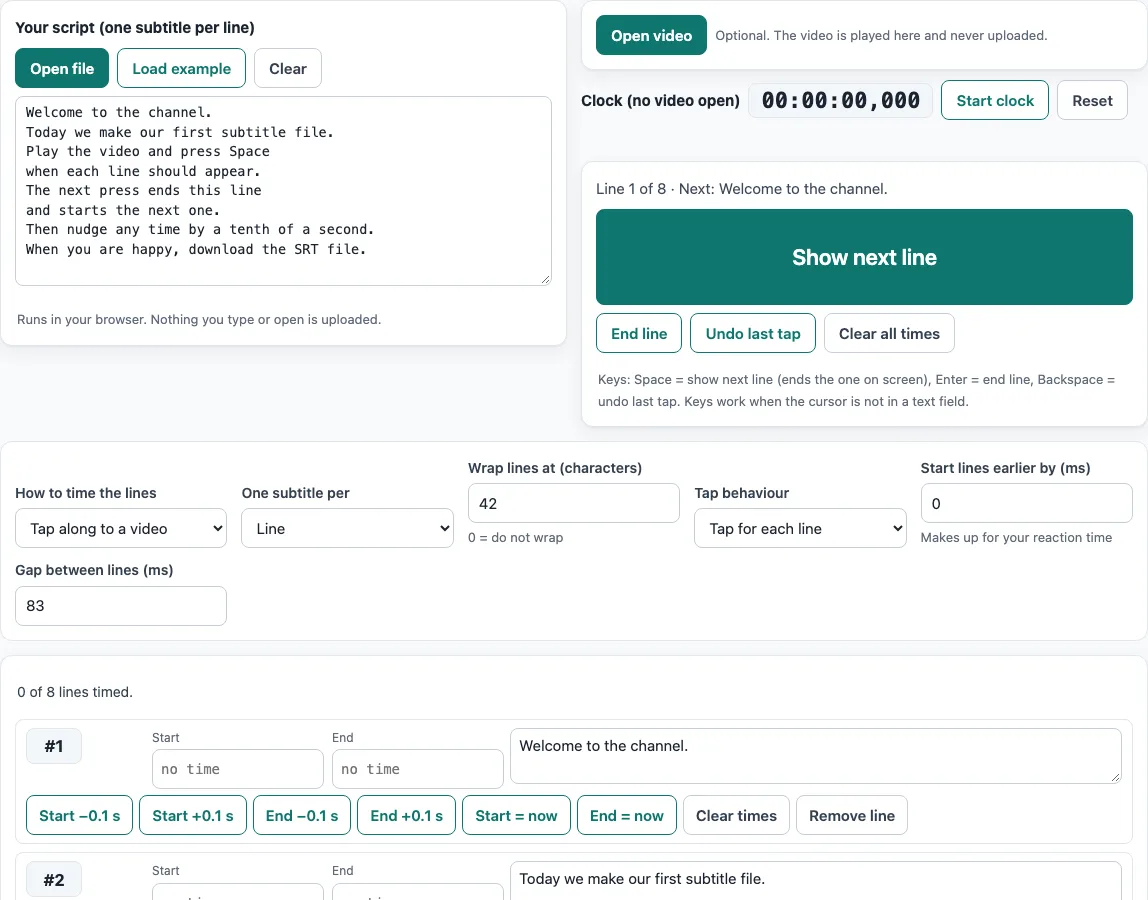
How to use the Subtitle maker
- Paste your text into the “Your script (one subtitle per line)” box, one subtitle per line. You can also click “Open file” to read a
.txtfile, or “Load example” to fill the box with the 8-line example. - Under “One subtitle per”, choose “Line” (the default), “Paragraph” or “Sentence”.
- Set “Wrap lines at (characters)” if you want long lines broken at spaces. The default is 42, and 0 means do not wrap.
- Under “How to time the lines”, leave “Tap along to a video” selected. Click “Open video”, play it, and press “Show next line” (or Space) each time a new line should appear.
- Press “End line” (or Enter) to close the last line, and “Undo last tap” (or Backspace) to take back a tap. “Clear all times” starts over.
- Without a video, the page shows a clock with “Start clock”, “Pause clock” and “Reset”.
- To skip tapping, choose “By reading speed (no video)”, set “Characters per second” and “First line starts at (s)”, and click “Time all lines by reading speed”. Choose “Type the times” to fill the table by hand.
- Check the table. Fix any time with the “Start −0.1 s”, “Start +0.1 s”, “End −0.1 s” and “End +0.1 s” buttons, and confirm the summary says all lines are timed.
- Choose a format under “Save as”, then click “Download” or “Copy”.
Choose “Hold to show the line” under “Tap behaviour” if you want each line on screen only while you hold the key down.
What is an SRT file (SubRip file)?
An SRT file, also called a SubRip file, is a plain text file that stores subtitles. It is made of numbered blocks. Each block has a start and end time on one line, written as start --> end, followed by the text of the subtitle.
For example, two lines tapped at 1.000 s and 2.500 s, with End line pressed at 4.000 s and the gap set to 0, produce this:
1
00:00:01,000 --> 00:00:02,500
One

2
00:00:02,500 --> 00:00:04,000
Two
The file has no metadata, so any player that reads SRT can load the file you make.
How do I make an SRT file?
Each subtitle needs a start time and an end time. Times use the form hh:mm:ss,mmm, with a comma before the milliseconds. Lines without both times are not saved in the file, which is why the summary shows how many lines are timed, for example “5 of 8 lines timed”. You can fill the times by tapping, by reading speed, or by typing them in the table. If you type only a start, the end is set from the reading speed, and the other way round.
How to make subtitles sync with a movie
Sync comes from timing each press against the picture. Tap when the speech starts, and the line appears at that moment. The line that was on screen ends “Gap between lines” before the press, which defaults to 83 ms. That gap is about 2 frames at 24 fps, and it keeps two lines from touching.
Reaction time is usually a fraction of a second. Use “Start lines earlier by (ms)” to subtract yours from every press. Watch the lines appear over the video, then adjust the value until they match.
How do I create an SRT file for a video?
Timing must also fit how fast people can read. The quality markers use Netflix-style limits as used by this tool: 20 characters per second, 42 characters per line, 2 lines, and 0.833 to 7 seconds per subtitle. They are warnings only, and each timed line is checked.
“Time all lines by reading speed” divides the characters in each line by “Characters per second” and gives each line at least 0.833 s. With the defaults (20 characters per second, 83 ms gap, first line at 1 s), “Hello there.” has 12 characters, so it lasts 0.833 s, shown as 00:00:01,000 --> 00:00:01,833. A 44-character line lasts 2.2 s. The default of 20 is a common adult limit, not a recommendation to read that fast, so lower it for slower text.
Can I make subtitles without a video?
Yes. Use the clock: the first tap starts it, so you can tap along to audio playing elsewhere. You can also use reading speed timing, which needs no video at all.
Frequently asked questions
Is the subtitle maker free?
Yes. The tool is free, and no sign-up is needed.
Is my video uploaded?
No. Videos you open with “Open video” are played locally in your browser and are never uploaded. Subtitle files you open are never uploaded either. Some MKV or HEVC videos do not play in every browser, and the page tells you when that happens; an MP4 (H.264) or WebM file is the safer choice.
Can I use the subtitle files commercially?
Yes. The subtitle files you make here are yours to use for any purpose, including commercial and client work. No attribution is needed.
Which formats can I save my subtitles in?
Under “Save as”, you can choose SRT, WebVTT, SBV, ASS or TTML. Click “Download” to save subtitles.srt (the extension follows the format you choose), or “Copy” to copy the text. A “Text of the saved file” preview shows what you will get.
Are my script and times saved?
The settings, such as how to time the lines and the wrap length, are kept in the page address. Your script and times are not stored anywhere, so download your file before you close the page.
How many lines can the table show?
The table shows 50 lines per page, with “Previous” and “Next” buttons. Each line has “Clear times” and “Remove line” buttons, and the number button jumps the video to the start of that line.
Related tools
- Online SRT editor: edit subtitle text and times after you have made a file.
- Subtitle shifter: move every subtitle earlier or later by the same amount.
- Subtitle frame rate converter: adjust subtitle timing when the video frame rate differs.
- SRT file format and checker: check that an SRT file follows the correct layout.
- Adding subtitles to video (MP4): preview an SRT on your video and copy the command that adds it.
- Subtitle converter: convert subtitles between formats.