Subtitle File Formats: Identify Your Subtitle File and Compare
Paste or open any subtitle file to see which format it is, how many cues it has and what styling it uses, then jump to the right converter.
This tool identifies and compares subtitle file formats. Paste a subtitle file into the tool or open one, and it reports the format, such as SRT, WebVTT, TTML or SCC, along with details like the cue count, the last time and the encoding. It recognizes SRT, WebVTT, SBV, ASS, SSA, TTML/DFXP, SAMI, SCC, EBU STL, MicroDVD, SubViewer 2, LRC and plain text.
The tool runs in your browser and is free, with no sign-up. Subtitle files and videos you open are never uploaded. It also reads binary .stl files, so you can check EBU STL files as well as text-based ones. Use it before you convert, edit or upload a subtitle file, so you know which format you are working with.
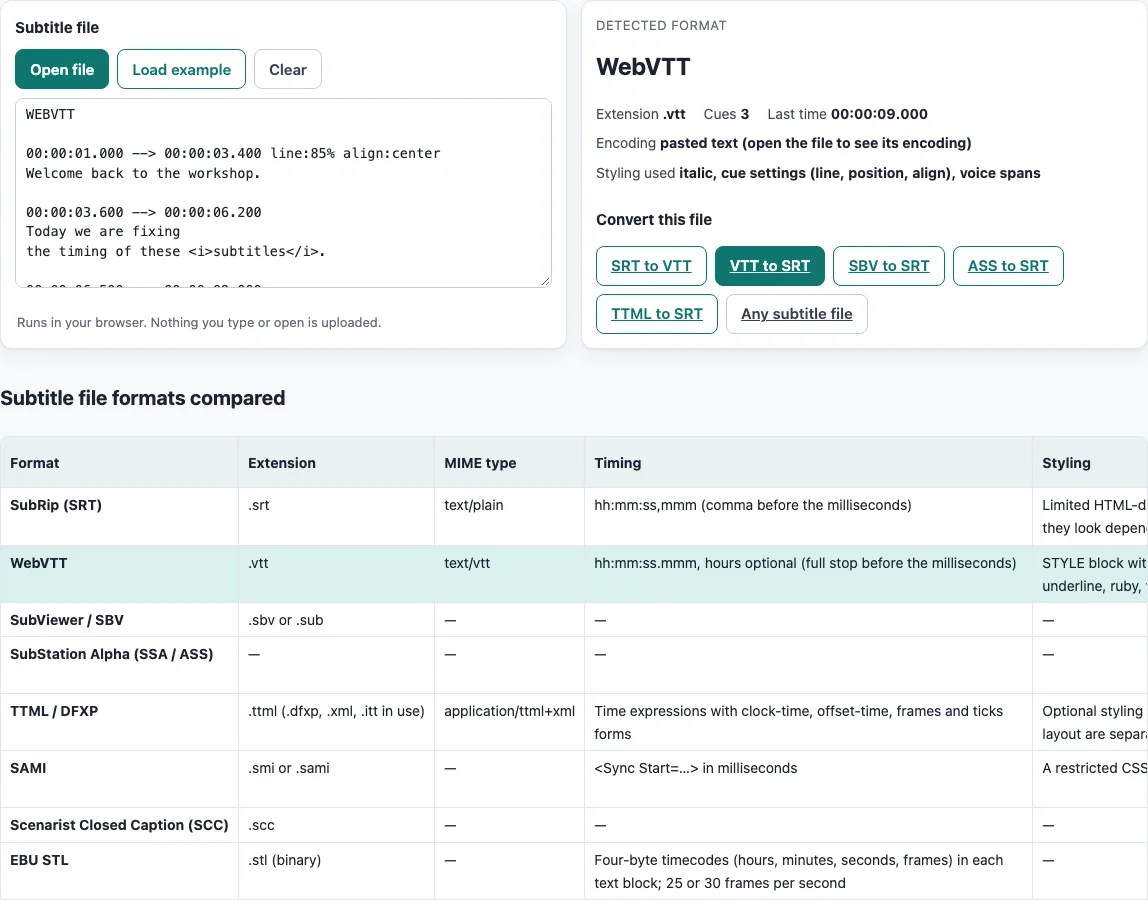
How to use the subtitle file formats tool
- Open the page and look at the “Subtitle file” box. It opens with a WebVTT example already loaded, so you can see the results straight away.
- To check your own file, paste its text into the “Subtitle file” box, drop the file onto it, or click “Open file”. Binary
.stlfiles work too. - Read the “Detected format” panel. It shows the format name, the extension, the cue count and the last time. For most formats the last time uses
hh:mm:ss.mmm. For MicroDVD it shows a frame number, and for SCC it shows a timecode. - For EBU STL files, check the frames per second value, which the panel shows only for that format.
- Check the encoding and line endings. For opened files the encoding is UTF-8, UTF-8 with BOM, UTF-16 or not valid UTF-8. Pasted text shows “pasted text” instead.
- Look at the styling features found, such as italic, bold, colour, position tags or ASS and TTML styles.
- In “Convert this file”, click the highlighted button. The button that fits your detected format is highlighted. If no converter exists for the format, “Any subtitle file” is highlighted.
Click any heading in the “Comparison table” to sort it by that column. The row for your detected format is highlighted, so you can compare it with the other formats.
What is a subtitle file type?
A subtitle file is a text or binary file that stores lines of subtitle text, each with a start time and an end time. A video player uses those times to show each line at the right moment. The subtitle file type, or format, is the set of rules the file follows, including how the timing is written and how the file is laid out. Common examples are .srt, .vtt, .ass and .ttml.
The “Comparison table” lists each format’s extension and MIME type. The MIME type is the label that browsers and servers use to identify the file.
What is the difference between SRT and VTT?
SRT and VTT both store timed cues of text, and the W3C’s WebVTT format is based on SRT. The main differences are in the timing and the extras. SRT writes milliseconds after a comma, as in 00:00:01,000. WebVTT uses a full stop, as in 00:00:01.000, and its hours part is optional.
WebVTT adds cue settings such as position, line, size, align, vertical and region. It also has a STYLE block with CSS and tags for class, voice and language. According to the Library of Congress, SRT has only limited HTML-derived tags, and it is commonly used as a sidecar file for web video.
Which subtitle formats does YouTube accept?
The “YouTube upload” column in the “Comparison table” says, for each format in the table, whether YouTube’s help page lists it. SubRip .srt is accepted in basic versions only, with no markup recognised and UTF-8 required. WebVTT .vtt is accepted with positioning and bold, italic and underline. TTML is a partial implementation that supports styling and positioning, SAMI .smi or .sami has no positioning, and SCC and EBU STL .stl are accepted too. SBV or .sub files are accepted with the same limits as SubRip. SSA/ASS, MicroDVD and VobSub are not in YouTube’s list. YouTube’s page names further older caption formats, such as Caption Center .tds and Captions Inc .cin, which this tool does not identify.
Check the row for your format before you upload, because the limits differ.
How do I convert VTT subtitles to SRT?
Open your WebVTT file in the “Subtitle file” box and check that the “Detected format” panel says WebVTT. Then click the highlighted “VTT to SRT” button in “Convert this file”. SRT supports only limited tags and the table lists no positioning for it, so check the converted subtitles for lost positioning or styling before you use them.
What is a caption file format?
A caption file format is a format for storing timed text that appears over video. The term is used for captions, which are text versions of dialogue and sounds, but in practice the words are used loosely. The Library of Congress notes that WebVTT is used for captions, subtitles, descriptions and chapters.
Some caption formats are built for specific broadcast standards. In the table, Scenarist SCC is described as an exact representation of CEA-608 data, and EBU STL as a European Broadcasting Union standard.
Frequently asked questions
Does this tool upload my subtitle files?
No. The tool runs in your browser, and subtitle files and videos you open are never uploaded.
What does a dash mean in the comparison table?
A dash “—” means that none of the sources the tool reads states that detail for the format. It does not confirm that the format lacks the feature. The “Sources for this table” list shows which pages were read.
Why does the encoding say “pasted text”?
Encoding values such as UTF-8, UTF-8 with BOM and UTF-16 are only detected for opened files, together with the line endings (CRLF, LF, CR or mixed). Pasted text has no file to check, so the panel shows “pasted text (open the file to see its encoding)”.
What does it show if my file is not recognised?
If no timings are found, the panel says “Not recognised as a subtitle file”. Plain text, a lyrics file without timestamps or an unsupported format look like this. Open the file as a file rather than pasting it to see its encoding.
Which converter does it suggest?
The “Convert this file” section has buttons for “SRT to VTT”, “VTT to SRT”, “SBV to SRT”, “ASS to SRT” and “TTML to SRT”, plus “Any subtitle file”. The one that fits your detected format is highlighted, and SSA files use the ASS button.
Can this tool check SCC timing or ASS timing?
Not reliably. The tool makes no claims about SCC timing and styling, or about ASS extension and timing, because no source for those was read. The “Detected format” panel still shows the format name, cue count and last time for these files.
Related tools
- SRT file format and checker: use it to learn the rules of SRT or to check an SRT file.
- Online SRT editor: use it when you already have an SRT file and want to work on it online.
- Subtitle converter: use it to convert between SRT, WebVTT, SBV, ASS, TTML and plain text.
- SRT to VTT converter: use it when you want an SRT file as WebVTT.
- VTT to SRT converter: use it when you want a WebVTT file as SRT.
- DJI SRT file viewer: use it when your SRT file comes from a DJI product rather than a subtitle track.