SRT to TXT Converter (SRT to Text)
Turn an SRT, VTT, SBV, ASS or TTML subtitle file into a clean plain-text transcript, with optional paragraphs and timecodes.
.srt if you still need them.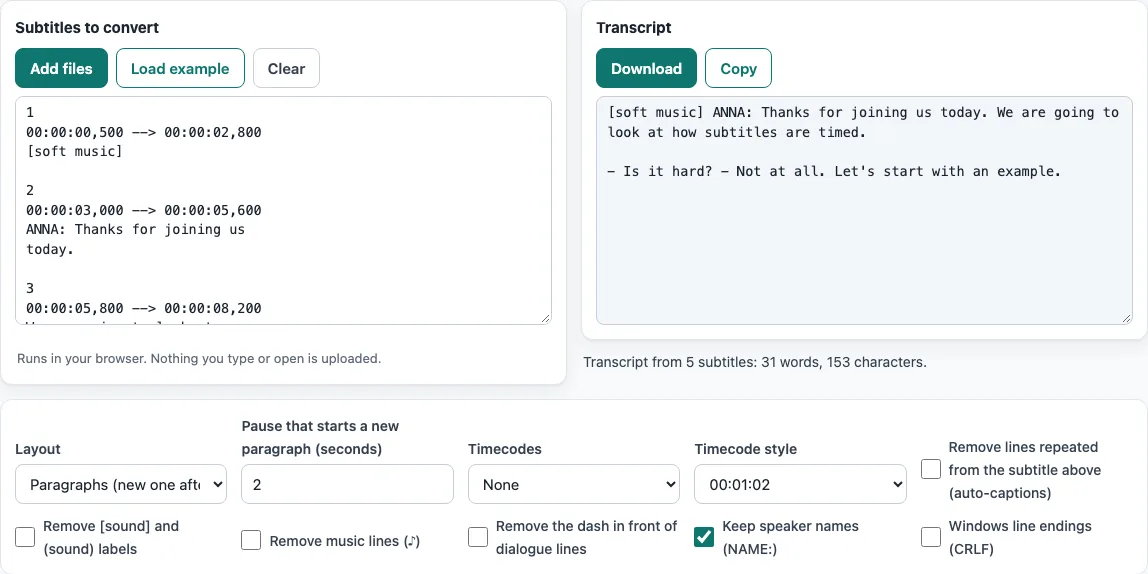
How to use the SRT to TXT converter
- Load your subtitles. Paste them into the box, click “Add files” to choose several files at once, or drag files into the box. To try the tool first, click “Load example”.
- There is no format menu to set. The tool detects SRT, WebVTT, SBV, ASS/SSA and TTML/DFXP by itself, and reads UTF-8 and UTF-16 (with BOM) files.
- Choose a “Layout”. The default, “Paragraphs (new one after a pause)”, joins the subtitle text into paragraphs. “Keep each subtitle’s line breaks” and “One line per subtitle” are the other options.
- Set the “Pause that starts a new paragraph (seconds)”. The default is 2.
- Choose “Timecodes” and, if you pick one, a “Timecode style”.
- Turn on any cleaning options you need, such as “Remove [sound] and (sound) labels”, “Remove music lines (♪)”, “Remove the dash in front of dialogue lines” or “Remove lines repeated from the subtitle above (auto-captions)”. Turn “Keep speaker names (NAME:)” off if you want names removed.
- Read the status line, for example “Transcript from 5 subtitles: W words, C characters.”, and open the “notes about the file” list if it appears, since it points to problems in the file.
- Click “Download” to save the transcript as a
.txtfile, or “Copy” to paste it elsewhere. With several files, click “Download all” or a single “Download” for each file.
Your settings are kept in the page address, so you can bookmark the address to reuse them. The text itself is not stored there.
How do I convert SRT to TXT?
An SRT file is a numbered list of subtitle cues. Each cue has a number, a timing line such as 00:00:01,000 --> 00:00:03,500, the subtitle text, and a blank line. A TXT file holds only text, so the converter keeps the words and drops the numbers and timing lines.
How do I convert an SRT to a transcript for reading, a blog post or summarising?
The “Paragraphs” layout is designed for reading. A new paragraph starts when the gap between the end of one subtitle and the start of the next is longer than the pause you set. For example, if subtitle 3 ends at 8.2 s and subtitle 4 starts at 12.5 s, the gap is 4.3 s, which is longer than the default 2 s, so a new paragraph begins there. Subtitle text is joined with spaces, and the tool does not repair punctuation or sentence breaks. Paragraphs are based on pauses only, so read the result once and fix any awkward breaks by hand before you publish or summarise it.
Which sound labels, music lines and speaker names get removed?
Subtitle files often carry extra markup that is not speech. The tool’s options follow common subtitle conventions. The Netflix English style guide says to use brackets to enclose speaker IDs or sound effects, to mark song lyrics with a music note (♪) at the start and end of each subtitle, and to use a hyphen without a space to show two speakers in one subtitle. That is why the tool can remove bracket labels, ♪ lines and dialogue dashes. The guide does not mention parentheses for sound labels, so the tool removes parentheses only because many files use them. Be careful with that option: “(see above)” in normal speech is removed too. Speaker names in ALL CAPS followed by a colon, such as “ANNA:”, are removed only when “Keep speaker names (NAME:)” is off. Names in normal capitalisation are never touched.
Frequently asked questions
Can I keep the timecodes?
Yes. Set “Timecodes” to “Start of every subtitle” or “Start of every paragraph”, which is available with the Paragraphs layout. Then pick a “Timecode style” such as 00:01:02 or [01:02]. The timecode appears before the text, followed by a space.
Why does my text have repeated lines (YouTube auto-captions)?
Automatic captions often repeat the previous line in each new cue, so the same words appear twice. Turn on “Remove lines repeated from the subtitle above (auto-captions)” to drop them. This option can also remove real repeats in consecutive cues, such as “No.” followed by “No.”, so it is off by default.
Can I convert several SRT files at once?
Yes. Click “Add files” or drag several files into the box. The tool shows a list with one “Download” for each file, and “Download all” saves them together.
Does it work with VTT, SBV, ASS or TTML?
Yes. The format is detected automatically for SRT, WebVTT, SBV, ASS/SSA and TTML/DFXP. Formatting such as italic, bold and colour tags is removed in every format. Cues in formats other than SRT keep their text as written.
Is the file uploaded?
No. Everything runs in your browser, and the tool never uploads your subtitle files or videos.
Related tools
- TXT to SRT converter: use it when you have plain text and need to turn it back into an SRT subtitle file.
- TXT to VTT converter: use it when you have plain text and need a WebVTT subtitle file.
- Subtitle maker: use it when you want to create subtitles from scratch.
- Online SRT editor: use it when you need to change the wording or timings in an SRT file.
- SRT file format and checker: use it when you want to check whether an SRT file follows the usual layout.
- Subtitle converter: use it when you need to convert subtitles between other formats.