Online SRT Editor
Open or paste an SRT file, fix times and text row by row, check reading speed and overlaps, then save it as SRT, VTT, SBV, ASS or TTML.
The online SRT editor on this page lets you open, edit and save SRT subtitle files directly in your browser. It is free and needs no sign-up. Click “Open file”, drop a file onto the box, or paste the text, then change cue times and text in the cue list and save the result.
Everything runs in the browser, and the subtitle files and videos you open are never uploaded. You can open a video to check timings against the picture while you work. The editor also reads WebVTT, SBV, ASS/SSA and TTML/DFXP files and saves to SRT, WebVTT, SBV, ASS or TTML, so it works as a subtitle editor online and as an SRT file opener.
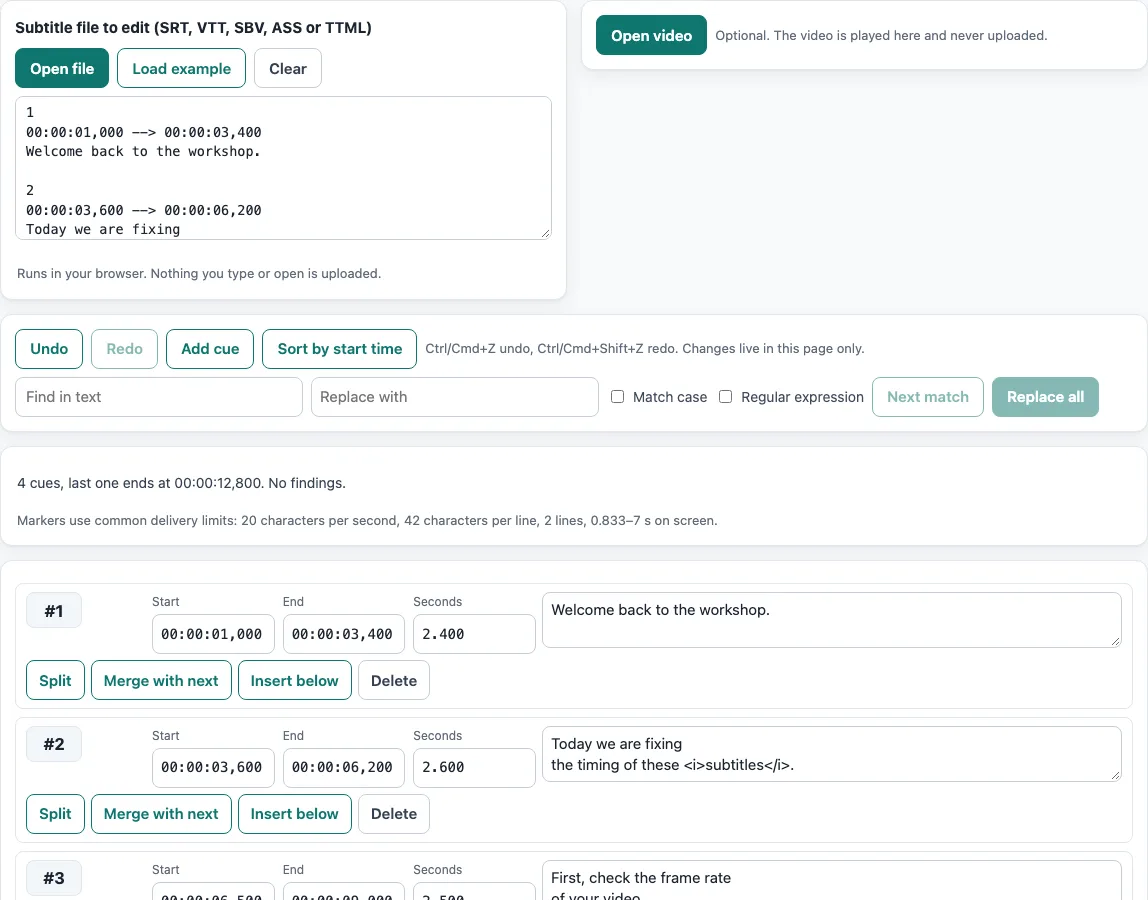
How to use the SRT editor
- Open your file. Click “Open file”, drop it onto the “Subtitle file to edit (SRT, VTT, SBV, ASS or TTML)” box, or paste the text into the box. To try the editor first, click “Load example”.
- Read the notes list above the toolbar. It shows reader notes such as missing cue numbers or a dot instead of a comma.
- Optional: click “Open video” to play a local video or audio file in the page. The cue on screen at the current time is drawn over the picture.
- Edit each cue in the cue list. Type “Start” and “End” as
00:01:02,500,1:02.5or plain seconds such as62.5, and change the text in the text field. The list shows 50 cues per page. - Use the row buttons where you need them: “Split”, “Merge with next”, “Insert below” and “Delete”. With a video open, “Start = video time” and “End = video time” set a time from the current playback position.
- To change a word everywhere, type it in “Find in text”, type the new one in “Replace with”, and click “Replace all”.
- Check the quality markers on each row and the summary line. Click a finding to jump to that cue.
- Under “Save as”, choose SRT, WebVTT, SBV, ASS or TTML, and check the “Text of the saved file” preview.
- Click “Download” to save the file, or “Copy” to copy the text.
Use “Undo” and “Redo” in the toolbar, or Ctrl/Cmd+Z, Ctrl/Cmd+Shift+Z and Ctrl/Cmd+Y, to step back through your changes.
How do I edit an SRT file online?
Open the file, change the times and text in the cue list, and save with “Save as” set to SRT. Each cue is one row, so you edit a subtitle by working on its row. Numbering is automatic: the file is renumbered 1 to n when you save it.
How do I open an SRT file?
Click “Open file”, drop the file onto the box, or paste its text. The editor reads UTF-8 and UTF-16 files with a byte order mark and detects the format for you. An SRT file is plain text made of cues: a number line, a timing line such as 00:00:03,600 --> 00:00:06,200, the text lines, and a blank line between cues. The comma before the milliseconds separates SRT from WebVTT, which uses a full stop and starts with WEBVTT.
SRT file opener?
This page works as an SRT file opener. SRT has no formal specification, so files vary a little from program to program. The notes list shows what differs, such as missing numbers or a dot in place of a comma, so you can check those cues before you save.
Can I edit SRT timing?
Yes. Type a new Start or End in any cue. Changing the “Seconds” value (the duration) moves End. “Merge with next” joins a cue with the one below, using the earliest start and the latest end and putting the texts on two lines. “Insert below” adds an empty 2-second cue starting 100 ms after the previous cue ends. When you split a cue, the split point is the cursor position in the text. The split time is the video’s current time if a video is open and that time falls inside the cue. Otherwise it is set in proportion to the number of characters in each half. Splitting by characters is our rule, not a standard. To move every cue by the same amount, use the Subtitle shifter instead.
Subtitle/caption editor online?
The page is a subtitle and caption editor that runs in your browser. Its quality markers check each cue for characters per second (CPS), characters per line, number of lines, too short or too long on screen, overlap with the next cue, a tiny gap, end before start, empty text and out-of-order cues. The limits are 20 characters per second, 42 characters per line, 2 lines, 0.833 s minimum and 7 s maximum. These are Netflix-style limits as used by this tool, not rules every site follows, and the editor has no setting to change them. Markers are warnings only, and nothing changes automatically.
Is my file uploaded?
No. Subtitle files and videos you open are never uploaded, because everything runs in your browser. A video plays from a local file reference inside the page. Some MKV or HEVC videos do not play in every browser, and a message tells you when that happens; an MP4 (H.264) or WebM file is the safer choice.
Frequently asked questions
Can I use the subtitle files I make here commercially?
Yes. The subtitle files you make here are yours to use for any purpose, including commercial and client work, and no attribution is needed.
Which formats can I save to?
You can save as SRT, WebVTT, SBV, ASS or TTML. The file is written as UTF-8 with LF line endings. SRT keeps the <i>, <b>, <u> and <font> tags. Other formats keep whatever they can hold.
Does the editor keep the styling of an ASS file?
No. ASS styling of an opened ASS file is not preserved. The file is rewritten with one default style.
What happens if I close the page with unsaved edits?
The page asks you to confirm before you close or reload it. Edits live only in the page and no draft is stored, so download or copy your file before you leave. The editor’s settings are not kept in the page address either, because the file content cannot be.
Can I undo a change?
Yes. Use “Undo” and “Redo” in the toolbar, or the keyboard shortcuts Ctrl/Cmd+Z, Ctrl/Cmd+Shift+Z and Ctrl/Cmd+Y. Typing is grouped, and up to 200 steps are kept.
Can I use regular expressions in find and replace?
Yes. Tick “Regular expression” to use JavaScript regular expression syntax, and $1-style groups work in “Replace with”. If the pattern is broken, the editor says “That is not a valid regular expression.”
Related tools
- Subtitle maker: use it when you need to write subtitles from scratch rather than edit an existing file.
- Subtitle shifter: use it when every cue in a file is early or late by the same amount.
- SRT file format and checker: use it to find structure, encoding and line-length problems in an SRT file.
- SRT to VTT converter: use it when you need a WebVTT file from an SRT file.
- SRT to TXT converter: use it when you want the spoken words without numbers and timings.