Frame Rate Converter for Subtitles and Timecodes
Convert subtitle timing and timecodes between frame rates (23.976, 24, 25, 29.97, 30 …), including drop-frame timecode. This page does not re-encode video.
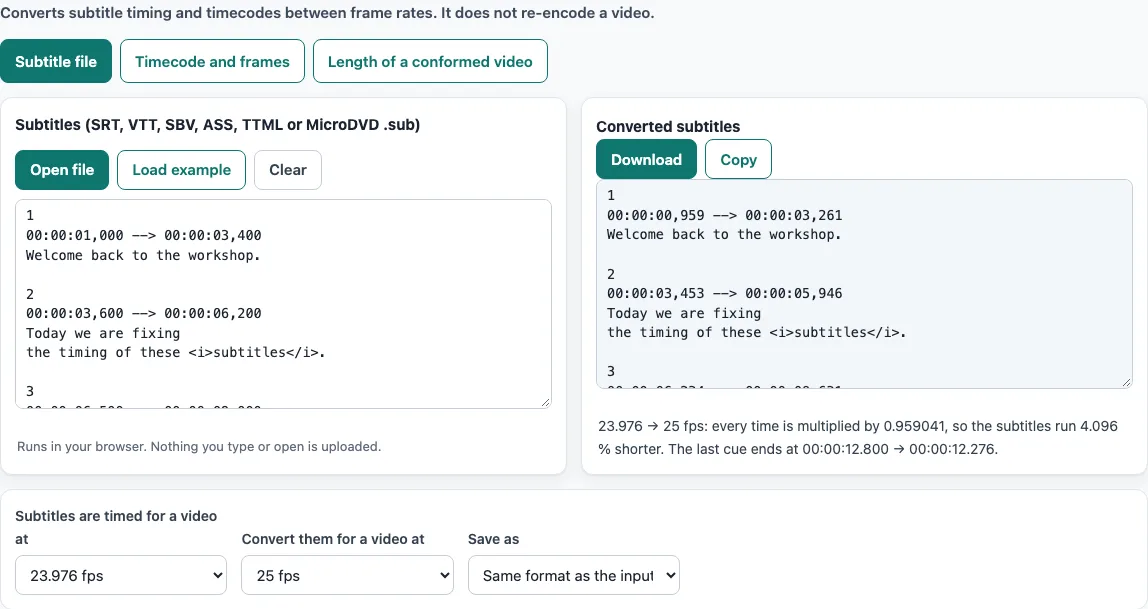
How to use the frame rate converter
- On the “Subtitle file” tab, paste subtitles into the “Subtitles (SRT, VTT, SBV, ASS, TTML or MicroDVD .sub)” box or open a file. An example is loaded when the page opens.
- Set “Subtitles are timed for a video at” to the frame rate the subtitles were made for. The list offers 23.976, 24, 25, 29.97, 30, 50, 59.94 and 60 fps. Choose “Other…” to type your own rate between 1 and 1000, such as 15 or 47.952.
- Set “Convert them for a video at” to the frame rate of the video the subtitles will play with.
- Read the summary line under the result. It gives the factor, how much shorter or longer the subtitles run, and where the last cue ends before and after.
- Under “Save as”, keep “Same format as the input” or pick another format such as “SRT (SubRip)”. MicroDVD input becomes SRT by default.
- Click “Download”. The file keeps the name you opened, with the new extension.
For timecodes, open “Timecode and frames”. Pick a “Frame rate” and tick “Drop-frame (29.97 and 59.94 only)” if needed. Type into “Timecode HH:MM:SS:FF (drop-frame with ;)”, “Frame number (0 = first frame)” or “Seconds (real time)” and the other two update.
To check a speed change, open “Length of a conformed video”. Fill in “Video was made at”, “Played or conformed at” and “Length of the video” (hh:mm:ss or seconds). It shows the new length, the difference, the playback speed and the audio pitch change.
What is 23.976?
NTSC rates are 1000/1001 of whole numbers, so 23.976 is 24 × 1000/1001, which is 24000/1001 fps (about 23.976024). The tool treats the 23.976, 29.97 and 59.94 presets as exactly 24000/1001, 30000/1001 and 60000/1001.
How do I convert subtitles from 23.976 to 25 fps (or 25 to 23.976)?
Set “Subtitles are timed for a video at” to 23.976 and “Convert them for a video at” to 25. Every time becomes t × from ÷ to, a factor of 0.959041, which is 4.096 % shorter. For example, 00:00:01,000 --> 00:00:03,400 becomes 00:00:00,959 --> 00:00:03,261. For 25 to 23.976, swap the two settings. The factor is then 1.042708, so the timings run 4.271 % longer.
How do I convert 30 to 24, 25 to 24, or PAL and NTSC subtitles?
Use the same rule: enter the rate the subtitles were timed for as From and your video’s rate as To. The factor is From divided by To, and every time is scaled by it. Going from 25 to 24 gives a factor of 1.041667 (4.167 % longer), and 30 to 24 gives 1.25 (25 % longer). Subtitle timing only needs changing when the video’s speed changed. If frames were only dropped or repeated at the same speed, the subtitles already match.
How do I change a video’s frame rate?
This tool does not change a video file. The FFmpeg -r option, used as an output option, duplicates or drops frames to reach the target rate, for example ffmpeg -i in.mp4 -r 25 out.mp4. The fps filter does the same job: ffmpeg -i in.mp4 -vf fps=25 out.mp4. HandBrake has its own frame rate controls, and its Peak Frame Rate option leaves footage at or below a chosen rate unchanged. Neither FFmpeg command changes the speed. A real speed change, such as the 24 to 25 PAL speed-up, needs a timestamp change and an audio tempo adjustment, and this page gives no command for that.
What is drop-frame timecode?
Drop-frame timecode is a numbering method for 29.97 and 59.94 fps that skips frame numbers so the timecode stays close to clock time. Frame numbers are skipped, not frames, and no picture is removed. At 29.97, numbers 0 and 1 are skipped at the start of every minute except every tenth minute. At 59.94, numbers 0 to 3 are skipped. Drop-frame timecode is written with a semicolon before the frames. At 29.97 the non-drop timecode 00:59:56:12 is the same frame as drop-frame 01:00:00;00.
How do I convert timecode to frames?
Enter the timecode in the “Timecode and frames” tab and read the “Frame number”. For non-drop timecode, the frame is 30 (or 60) × (3600h + 60m + s) + f. With drop-frame, subtract 2 (or 4) for each minute so far, not counting every tenth minute. For example, 00:01:00;02 at 29.97 drop-frame is frame 1800, which is 60.060 seconds. Going from seconds to a frame gives the frame shown at that time, rounded down.
Why does a 24 → 25 speed-up make the audio higher?
Playing 24 fps film at 25 fps speeds up both picture and sound to 104.167 % of the original speed. Pitch rises with speed, and 12 × log2(25/24) is about 0.707 semitones. A 90-minute film then runs 3.6 minutes shorter, at 01:26:24.000. The pitch stays higher unless the sound is corrected, because time-stretching can fix it.
Frame rate converter for audio?
Audio has no frame rate, so this tool does not convert audio files. The only audio effect shown here is pitch. When a video is sped up and its sound is not corrected, the “Length of a conformed video” tab reports the change in semitones.
Frequently asked questions
Does this tool change the video file itself?
No. It converts subtitle timing and timecodes and does not re-encode a video. For changing a video’s own frame rate, see the section above.
Why is “Drop-frame” greyed out?
Drop-frame timecode exists only for 29.97 and 59.94 frame rates. Choose one of those under “Frame rate” to enable the box.
What does “Save as” do with a MicroDVD file?
The default keeps the same format, but MicroDVD input becomes SRT. If you choose MicroDVD as the output, frame numbers are written at the “Convert them for a video at” rate. MicroDVD input is read at the “Subtitles are timed for a video at” rate. If the file’s first line gives a different rate, such as {1}{1}23.976, the tool only shows a note and keeps your setting.
Why was my timecode rejected?
The tool shows the reason. Without drop-frame, frames go from 0 up to one below the rate (29 at 30 fps), and seconds and minutes go up to 59. With drop-frame, the skipped frame numbers at the start of each minute do not exist, except in every tenth minute.
Should I convert subtitles when only the frame rate label changed?
No. If the video was re-labelled or frames were dropped or repeated, its length stays the same and the subtitle times already match. Convert only when the speed changed and the length with it.
Related tools
- Online SRT editor: use it to edit cue text and timings after you have converted a file.
- Subtitle shifter: use it when subtitles are only out of sync by a fixed offset.
- Subtitle maker: use it to create subtitles from scratch rather than converting existing ones.
- SRT file format and checker: use it to check the structure of an SRT file.
- Add subtitles to video: use it to preview your subtitles on a video and get the command that adds them.
- Subtitle converter: use it to change a subtitle file between formats without changing the timing.