Extract Subtitle From MP4
Open an .mp4, .m4v or .mov file and save its subtitle tracks as SRT or WebVTT. Only the track data is read; the video never leaves your device.
Extract subtitle from MP4 with this free tool: it saves the subtitle tracks inside an MP4 file as SRT, the plain-text subtitle format that most video players accept. Open the file, pick a subtitle track from the track list, and download it. It runs in your browser, is free, and needs no sign-up. Your video and subtitle files are never uploaded.
It also accepts .m4v, .mov and .3gp files, and you can save as WebVTT or plain text instead of SRT. Only the parts of the file that hold the subtitles are read, so large files open quickly. In a test, a 512 MB MP4 was listed and extracted in 0.2 seconds. If the file has no subtitle track, the page tells you why.
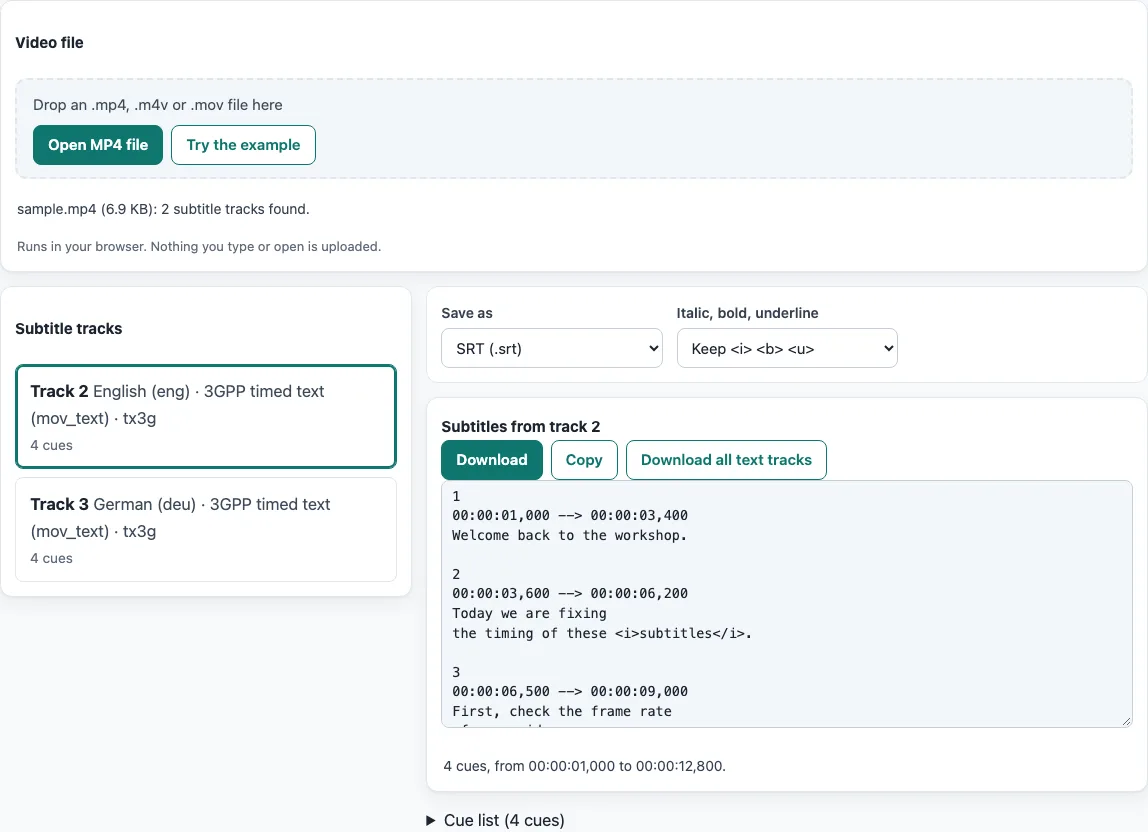
How to use the extract subtitle from MP4 tool
- Click “Open MP4 file”, or drop your file onto the page. The tool accepts
.mp4,.m4v,.movand.3gpfiles. The page opens with a built-insample.mp4already loaded, with English and German subtitle tracks. Click “Try the example” to load it again. - Wait for the progress bar to finish. Click “Cancel” if you want to stop reading the file.
- Read the “Subtitle tracks” list. Each row shows the track number, the language (name and code), the format and the number of cues. Closed captions and picture tracks are listed with a reason, because they cannot be extracted as text.
- Click the text track you want to preview. The first text track is selected automatically.
- Under “Save as”, pick “SRT (.srt)” (the default), “WebVTT (.vtt)” or “Plain text (.txt)”.
- Under “Italic, bold, underline”, pick “Keep
<i> <b> <u>” (the default), “Keep all tags” or “Remove all formatting”. - Check the text under “Subtitles from track N” and the collapsible “Cue list”. The stats line shows the number of cues and the first and last times.
- Click “Download” to save the file. The name follows the pattern
<video name>.<language code>.srt. Click “Copy” to copy the text instead, or “Download all text tracks” to save every text track in the file.
If you prefer the command line, ffmpeg can do the same job with ffmpeg -i input.mp4 -map 0:s:0 output.srt, where -map 0:s:0 selects the first subtitle stream.
How do I extract a subtitle from an MP4?
An MP4 keeps subtitles as a separate track next to the video, so extracting one means reading that track and writing its text out. This tool reads the track’s timing and text, then writes each line as a numbered cue in an SRT file.
An MP4 is built from boxes, and each box starts with a size and a four-character type. The tool reads the movie header (moov) and the sample tables, which say where each subtitle sample starts, how long it lasts and how big it is. It jumps over the mdat box, which holds the video, so the video itself is never loaded.
Can I convert MP4 to SRT?
Yes, if the file contains a subtitle track stored as text. This tool turns an MP4 text track into SRT, and for the test file its output matches the output of ffmpeg. Tracks that hold images cannot be converted to text without OCR, and spoken words in the audio would need speech recognition, which is a different job that this tool does not do.
Text can be stored as UTF-8 or UTF-16 with a byte-order mark. Bold, italic and underline come from the style records in the file, and the tool writes them back as <i>, <b> and <u>. Empty samples become gaps between cues.
Why does my MP4 show no subtitles track?
Usually the file has no subtitle track at all. Subtitles that are burned in are part of the picture, so they cannot be pulled out as a separate track, and some downloads ship the subtitles as a separate .srt file. When no track is found, the page says so and explains this.
Closed captions inside the video stream (CEA-608 and CEA-708) are listed with a reason and are not extracted as text. The tool also does not create subtitles from speech, so a video with only spoken audio will not produce an SRT file.
Is it online and free without upload?
The tool runs in your browser, is free and needs no sign-up. The files you open are never uploaded, so the video and subtitle data stay on your device. Only box headers, the movie header and the bytes of the subtitle samples are read.
Which subtitle formats are inside MP4?
MP4 can hold text subtitles in three main formats: 3GPP timed text (mov_text, box type tx3g), WebVTT in MP4 (wvtt) and TTML in MP4 (stpp). QuickTime text tracks are also listed. The tool reads all of them. The usual one is mov_text, while wvtt and stpp appear in streaming files.
Each tx3g sample holds a 16-bit text length, the text and optional boxes such as styl. Each wvtt sample holds vttc cue boxes with their payl, sttg and iden children. Each stpp sample is a TTML document, and the tool uses its times as written.
Frequently asked questions
Does the tool handle fragmented MP4 files?
Yes. Besides the normal sample tables, the tool reads fragmented MP4 (a moov box with mvex, then moof fragments). An ffmpeg-made fragmented file does not store gap samples, so a cue ends where the next sample starts.
Can it read .mov and .m4v files?
Yes. These files have the same box structure as an MP4, and the tool accepts .mp4, .m4v, .mov and .3gp. QuickTime text tracks use the same sample layout as tx3g.
What if my file has a video but the movie header is missing?
Then the file is incomplete, for example because a recording was cut off. The page says the movie header (moov box) is missing, and no tracks can be listed.
Which language code ends up in the file name?
The code comes from the track’s language setting. The name is <video name>.<language code>.srt, and a track with no language uses track in place of the code.
Can I get the subtitle without a browser?
Yes. With ffmpeg, ffmpeg -i input.mp4 -map 0:s:0 output.srt writes the first subtitle stream. This tool gave the same cues as ffmpeg for the test file. mkvextract works only on Matroska files, so it does not help for MP4.
Related tools
- Extract subtitles from MKV: use this when your subtitles are inside a Matroska (MKV) file instead of an MP4.
- Subtitle converter: use this when you want to convert a subtitle file from one format to another.
- ASS to SRT converter: use this when your subtitle file is in ASS format and you need SRT.
- Add subtitles to video: use this to preview subtitles on a video and get the command that adds them.
- Online SRT editor: use this when you want to change the text or timing in an SRT file.
- Subtitle file formats compared: use this when you want to know which subtitle format suits your needs.