DJI SRT File Viewer: Read the Telemetry, Export GPX, KML, CSV
Open the .SRT file your DJI drone saved next to the video to see every GPS and camera record, then download a GPX track, KML path, GeoJSON or CSV.
The DJI SRT converter reads the flight log that DJI drones save as an .SRT file and exports it as GPX, KML, CSV or GeoJSON. It runs in your browser, is free, and needs no sign-up. Drop in your file and the page shows a summary of the flight, a flight path drawn from the coordinates, and a collapsed table of the first 200 records.
The SRT file holds GPS position, height, camera settings and, in some files, speed for each frame or second of video. You can use the exported track to map a flight, check how height changed over time, or load the data into a spreadsheet or mapping software.
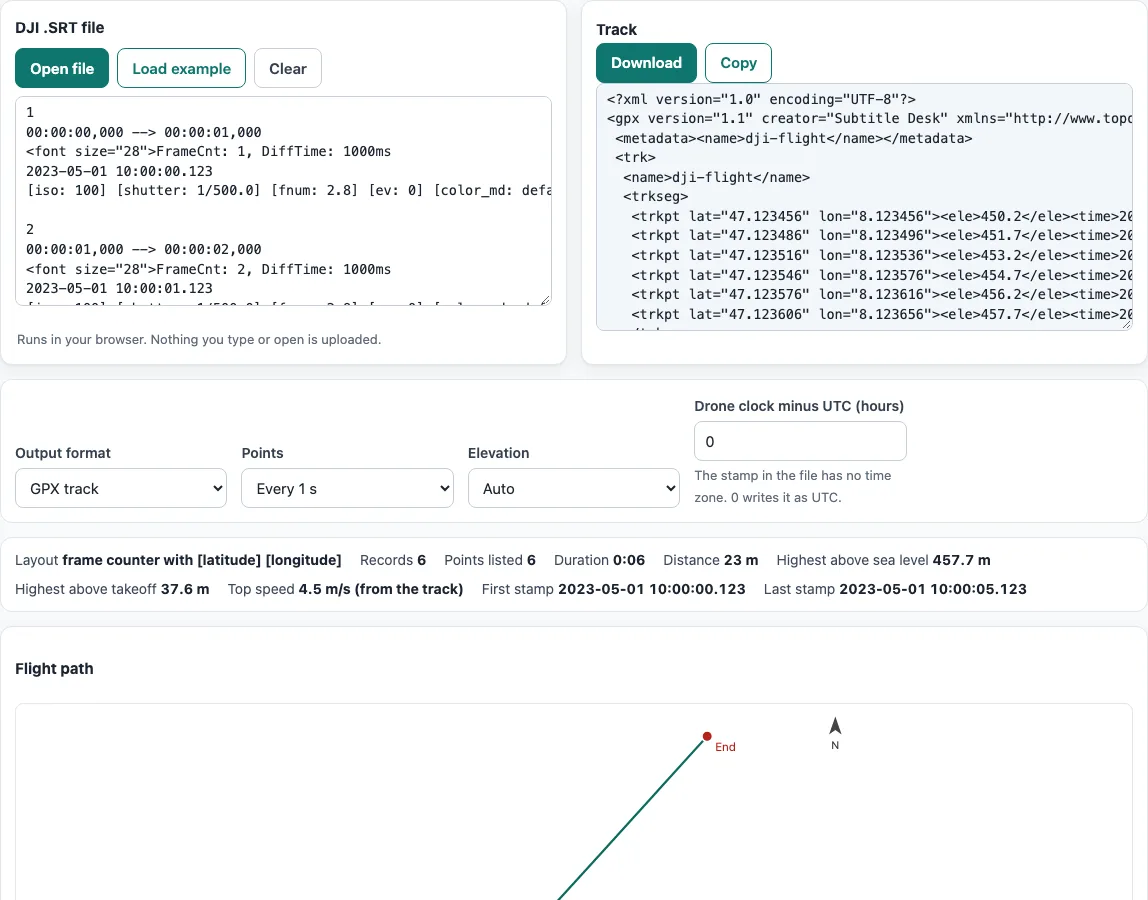
How to use the DJI SRT converter
- Place your file in the “DJI .SRT file” box. You can drop it there, paste its text, or click “Open file” (
.srtand.txtfiles are offered). Until you do, the box shows a short example of six records, so you can see the output first. - Read the summary. Its entries are “Layout”, “Records”, “Points listed”, “Duration”, “Distance”, “Highest above sea level”, “Highest above takeoff”, “Top speed”, “First stamp”, “Last stamp”, and counts of records without GPS fix.
- Choose an “Output format”. The default is GPX track.
- Set “Points”. The choices are “Every frame”, “Every 0.5 s”, “Every 1 s” (the default), “Every 5 s” and “Every 10 s”. A longer interval gives fewer points in every output, in the distance and in the flight path.
- Set “Elevation”. The default is “Auto”. You can select “Above sea level” or “Above takeoff” instead.
- If the GPX times are off, enter your clock offset in “Drone clock minus UTC (hours)”. The default is 0.
- In the Track box, click “Download” to save a file named
<name>.gpx,.csv,.kmlor.geojson, or click “Copy” to copy the text. - Look at the “Flight path” drawing, which has Start and End markers and a scale bar, and click “Download SVG” to save it. Open the record table to see the first 200 records.
Your settings are kept in the page address, so bookmarking that address keeps them.
What is the SRT file from my DJI drone?
A DJI drone usually saves an .SRT file alongside each video, with the same base name. It is a text file, like a subtitle file, but it holds flight data instead of spoken words. Each block has a timestamp and values such as latitude, longitude, height, and camera settings. In the files we have seen, the third GPS value is usually the satellite count, and D and H are usually distance from home and height. These readings come from sample files and are not official DJI documentation.
How do I open a DJI SRT file?
Drop the file onto the “DJI .SRT file” box, paste its text, or choose “Open file”. The tool detects one of three layouts. The frame-counter layout has one block per video frame. The classic layout and the compact layout have one record per second. The Summary shows which layout was found, so you can confirm the file was read correctly.
DJI SRT to GPX / KML / CSV?
Choose the format in “Output format”. GPX is the default and writes a GPX 1.1 track with latitude, longitude, elevation and UTC time for each point. KML writes a path of longitude, latitude and altitude, with Start and End placemarks. CSV writes a table with one row per point and leaves out empty columns. GeoJSON writes a LineString with Start and End points. All four use the points selected in “Points”.
Why are there thousands of records?
Frame-counter files have one block per video frame, so a short clip can produce thousands of records. For example, one minute at 30 frames per second gives 1,800 blocks. The classic and compact layouts write one record per second. To reduce the count, raise the interval in “Points”. The Summary shows both the records read and the points listed. Records with a latitude and longitude of 0,0 have no GPS fix, so they are listed but not drawn on the track.
Is my data uploaded?
No. The tool reads the file inside your browser, so the flight data stays on your device. The flight path is drawn from the coordinates alone. It has no map and makes no network requests, so it does not load a map from another service.
Why is the time off by hours?
The timestamp in the file has no time zone. In the files we have seen, it is usually the drone’s local clock time. Enter the number of hours your clock is ahead of UTC in “Drone clock minus UTC (hours)”. The tool subtracts that value to write true UTC times in GPX. For example, if the clock is set to UTC+2, enter 2. The default of 0 writes the timestamp as UTC without any change.
Frequently asked questions
Which DJI drones have been tested?
The README of the public DJI_SRT_Parser project, whose sample files were used to write this reader, lists tested models: Mavic Pro, Mavic 2 Zoom and Pro, Mavic 3, Mavic Mini, Mini 2, Mini SE, Air 2, Air 2S, DJI FPV, and some versions of Phantom Pro and Inspire. Its sample files also include Matrice 300 and Phantom 4 RTK. DJI does not publish a specification for these files, so the layouts are read from samples. If a file uses a layout the tool does not recognise, the Summary shows the blocks as not understood.
What does the Elevation setting change?
“Auto” uses above sea level when the file has it, then height above takeoff, then barometer. The other two options force one reading. The chosen setting also sets the KML altitude mode to absolute, relativeToGround or clampToGround, so the path matches the altitude used.
Why does top speed say “from the track” or “from the file”?
The “Top speed” entry says “(from the file)” when the SRT has horizontal speed values (H.S), and the tool reports those, and “(from the track)” when it has none, so the tool divides the distance between each pair of listed points by the time between them and reports the largest result.
Does changing “Points” change the distance?
Yes. Distance is the sum of the straight-line legs between listed points, measured with the haversine formula and a mean Earth radius of 6371008.8 m. Fewer points mean shorter legs and usually a smaller total, so compare distances only at the same “Points” setting.
Related tools
- SRT file format and checker: use it to check the structure of an SRT file.
- Subtitle file formats compared: use it to see how SRT differs from other subtitle formats.
- Online SRT editor: use it to edit the text of an SRT file.
- Subtitle converter: use it to convert subtitle files between formats.
- SRT to VTT converter: use it when you need a WebVTT file from an SRT file.
- VTT to SRT converter: use it when you need an SRT file from a WebVTT file.