Adding SRT Subtitles to Video (MP4)
Open your video and your SRT to check the timing on the picture, then copy the exact ffmpeg command, HandBrake steps or sidecar file name. The video never leaves your device.
Adding SRT to video starts with checking that the subtitles fit the picture, and this free tool lets you do that on your own video in the browser. Open a video that your browser can play and a subtitle file in SRT, WebVTT, SBV, ASS or TTML format, and the subtitles appear on the picture. The tool then writes the exact ffmpeg command, the HandBrake steps or the sidecar file name that adds them.
The tool does not convert your video or re-encode it. The video and subtitle files you open are never uploaded, and there is no sign-up. Only the “Burned into the picture (hardcoded)” result re-encodes the video, and that happens when you run the command in ffmpeg, not on this page.
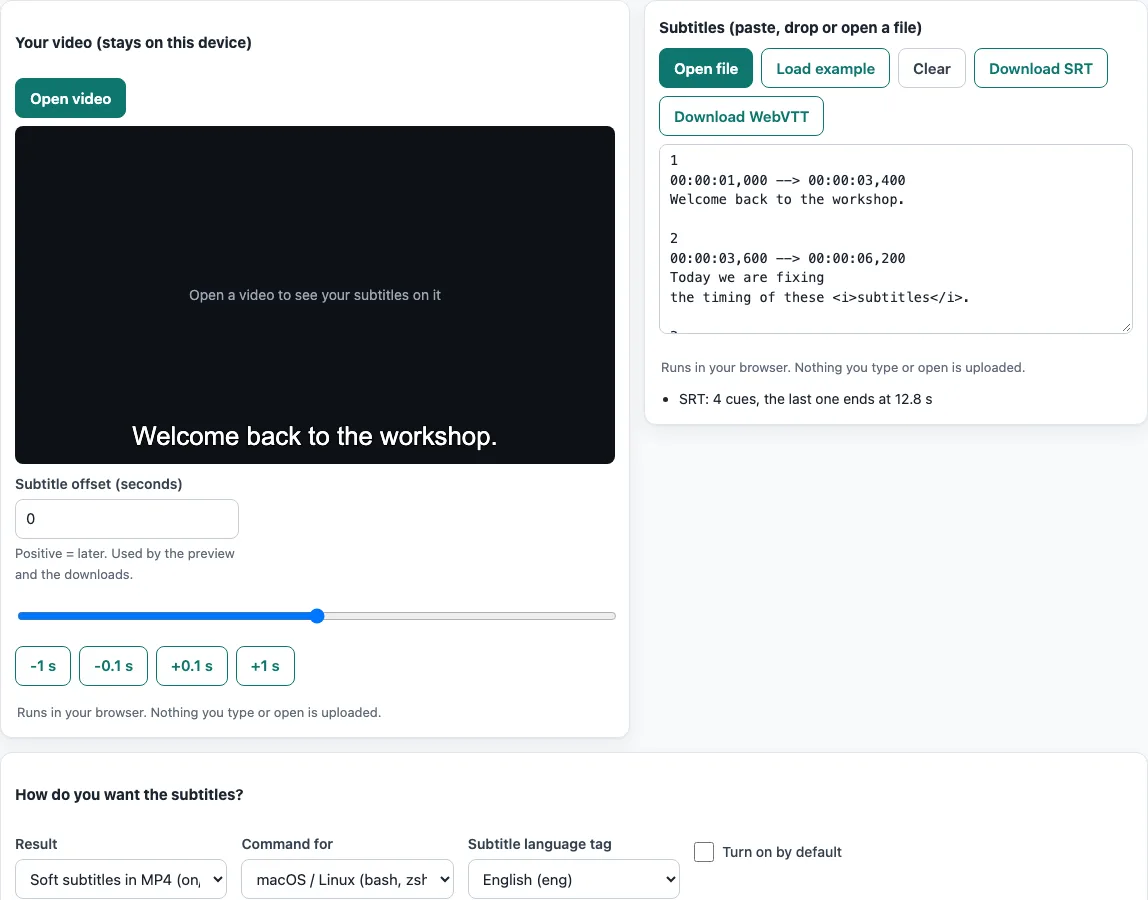
How to use the adding SRT to video tool
- Press “Open video”, or drop a video on it. The browser plays it from a local copy; if it cannot, the page says so.
- Paste, open or drop your subtitle file into the “Subtitles (paste, drop or open a file)” box. “Load example” fills in a sample. The line under the box shows the format, the cue count and the end of the last cue.
- If the subtitles are early or late, change “Subtitle offset (seconds)” with the field, the slider or the -1 s, -0.1 s, +0.1 s and +1 s buttons. A positive offset is later.
- Under “How do you want the subtitles?”, set “Result” to “Soft subtitles in MP4 (on/off in the player)”, “Soft subtitles in MKV”, “Burned into the picture (hardcoded)”, “HandBrake (no command line)” or “Sidecar file next to the video”.
- Set “Command for” to your shell: bash or zsh, Windows Command Prompt or PowerShell.
- For soft results, pick a “Subtitle language tag” (English,
eng, is the default) and decide whether to tick “Turn on by default”. - Check the “Video file name”, “Subtitle file name” and “Output file name”.
- For the burned-in result, adjust “Font size”, “Text colour”, “Outline width”, “Outline colour”, “Position”, “Distance from the edge”, “Bold” and “Video quality (CRF)”.
- Copy the command from the “Command” box, or press “Download”. Run it where your files are. HandBrake and sidecar results show numbered steps instead.
“Download SRT” and “Download WebVTT” save the parsed subtitles with the offset applied.
How do I add an SRT file to an MP4?
Use a soft subtitle track. The command copies the video and audio without re-encoding them and stores the SRT as a separate text track inside the MP4. Choose “Soft subtitles in MP4 (on/off in the player)”, set the language tag and copy the command. For my talk.mp4 and my talk.srt in English, the tool writes:
ffmpeg -i 'my talk.mp4' -i 'my talk.srt' -c copy -c:s mov_text -metadata:s:s:0 language=eng 'my talk-subtitled.mp4'
We ran the same pattern with ffmpeg 7.1.1 on a 14 second test file. ffprobe showed the video as h264, the audio as aac and the subtitle as mov_text tagged language=eng. For MKV, the “Soft subtitles in MKV” result uses -c:s srt, or -c:s ass for an ASS file.
What is the difference between soft and burned-in subtitles?
Soft subtitles are a separate track in the file. The viewer can switch them off, and because the video is copied, its quality is unchanged. Burned-in subtitles, also called hard subtitles, are drawn onto the pictures. They look the same in any player, but they cannot be turned off.
Burned-in output needs a re-encode, so the command uses -c:v libx264 -crf 18 and copies the audio. The ffmpeg H.264 guide describes CRF 17 or 18 as visually lossless or nearly so. The preview uses the same font size, colour, outline and position values as the command. An ASS file keeps its own styling, so no style options are added for it.
Why is there no “convert” button?
Putting subtitles into a video means writing a new video file. This page runs in your browser without uploading anything and does not re-encode, so it previews the result and gives you the exact command instead. Nothing on the page writes a video.
The “Download SRT” and “Download WebVTT” buttons only change the subtitle file, and they apply your offset. They do not touch the video.
Can I add subtitles without ffmpeg?
Yes, in two ways. HandBrake is the first. Its documentation says to press the “Tracks” button on the Subtitles tab and choose the option that imports an SRT file, then pick Hard Burn or Soft Subtitles and select the correct “Char Code”. A wrong character code gives an output with no subtitle track. HandBrake also lets you set an offset in milliseconds, and soft subtitles are not supported in the WebM container.
The other way is a sidecar file. Name the subtitle file the same as the video, for example Dark Star.avi and Dark Star.srt. The VideoLAN wiki says VLC opens the subtitle automatically when the names match. Other players follow their own rules, which this page does not cover.
How do I put a path with spaces, colons or quotes into the subtitles filter?
You do not need to escape the path yourself. For the burned-in result, ffmpeg reads the file name in two layers before the shell sees it. Inside the filter option it escapes \, ' and :. Inside the filtergraph it escapes \, ', [, ], , and ;. The tool applies both and then quotes the whole command for your shell. We tested names with spaces, quotes, colons, commas, semicolons, brackets, equals signs and non-ASCII letters.
File names that look like scheme: need a ./ prefix in bash. For example, a:b.srt fails with “Protocol not found” unless it is written ./a:b.srt, and the tool adds the prefix. On Windows, paths such as C:\dir\a.srt are escaped by the tool, but the simplest option is to keep the files in the current folder. We have not tested the Windows commands on Windows itself.
Frequently asked questions
Does the tool upload my video or subtitle file?
No. The video plays from a local copy in your browser, and the subtitle file is read in the browser. The files you open are never uploaded.
Why does the preview look slightly different from the burned-in video?
The preview approximates the burned-in output and is not pixel-exact. Libass, the subtitle renderer, can behave differently between ffmpeg builds. “Font size” is counted on a 288-line picture, so the preview scales it to the height of the shown video. Check the finished file in the player you plan to use.
Why won’t my video play in the preview?
Some files use codecs or containers the browser cannot play, MKV files with some codecs among them. The page says so, and the commands still use your file name, so you can run them in ffmpeg.
What do the downloaded files look like when I change the offset?
The downloaded SRT has the offset applied to every cue. With an offset of +2 seconds, a first cue that starts at 00:00:01,000 starts at 00:00:03,000. When the offset is not 0, the file is named <name>.shifted.srt, and the command reads that file.
What if my subtitles are not SRT?
ffmpeg reads SRT, WebVTT and ASS files directly. For other formats, such as SBV or TTML, the command reads a .srt file that you save with “Download SRT”, and a note under the command says so.
Will my soft subtitles show in every player?
This page does not claim which players display MP4 text tracks. Test the output in the player you plan to use. If a player does not show the track, a burned-in result will always show the text.
Related tools
- Subtitle shifter: use it to move all subtitle times by a fixed offset.
- Frame rate converter: use it when subtitle timing needs a frame rate change, not just a fixed offset.
- Extract subtitles from MP4: pull existing subtitle tracks out of an MP4 file.
- Video bitrate calculator: work out the bitrate you need for a target file size.
- Video file size calculator: estimate how large a video file will be before you export it.