1080p Bitrate: Recommended Video Bitrate by Frame Rate
Pick a resolution and frame rate to see the bitrates YouTube publishes for uploads and live streams, with the file size per minute and hour and our own estimate.
This 1080p bitrate tool shows the video bitrates YouTube publishes for 1080p footage at 24 to 60 fps, for uploads and for live streams. Choose a resolution and a frame rate, and the tool lists the published numbers with the video size per minute and per hour, next to its own bits-per-pixel estimate. It runs in your browser with no sign-up, and it needs no file from you.
Use it when you are setting up an export for YouTube or a live stream and need a target video bitrate before you start. The default is 1080p at 30 fps. A table also lists 8K, 2160p (4K), 1440p, 720p, 480p and 360p at the same frame rate for comparison. The sources are YouTube’s two help pages, linked under the table with the date they were checked (2026-10-13), so you can confirm each number there.
How to use the 1080p bitrate tool
- Check “Resolution”. It is set to “1080p (1920×1080)” by default, and the list also has 8K, 2160p / 4K, 1440p, 720p, 480p and 360p.
- Set “Frame rate” to 24, 25, 30, 48, 50 or 60 fps. The default is 30 fps. Choose 60 fps if your footage was recorded at 60 fps.
- Set “Show” to “All published sources”, “YouTube upload, SDR”, “YouTube upload, HDR” or “YouTube Live”. Pick the one that matches your upload or stream.
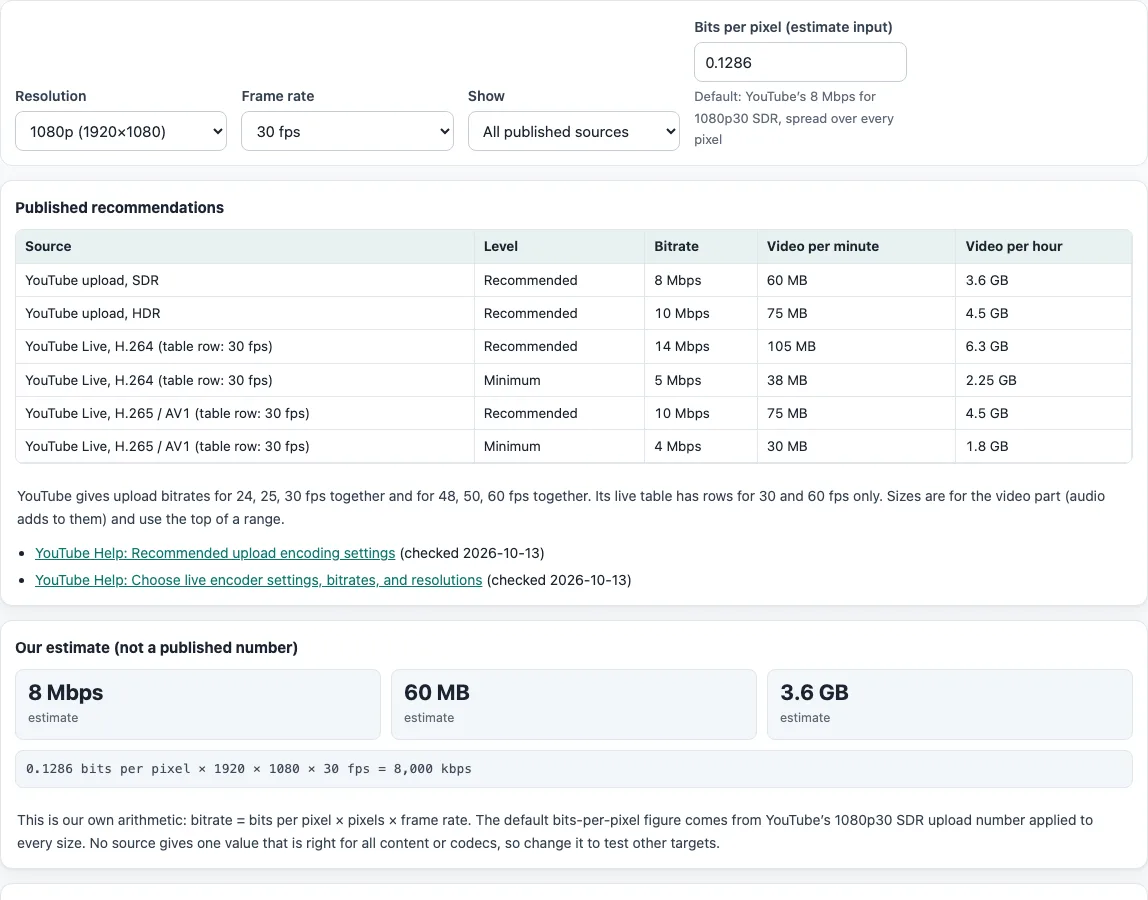
- Read the “Published recommendations” table. It shows each source, its level (“Range”, “Minimum” or “Recommended”), the bitrate, the video size per minute in MB and per hour in GB. Rows marked “Not listed by the source” have no number from that source.
- Read “Our estimate (not a published number)”. It multiplies bits per pixel by width, height and frame rate and shows Mbps, MB per minute and GB per hour. The “Bits per pixel (estimate input)” field defaults to 0.1286, and you can change it to test other targets.
- Scroll to “Every resolution at this frame rate”. It lists YouTube upload SDR, upload HDR, live H.264 recommended and our estimate, all in Mbps.
Every table uses the frame rate you set in step 2. Sizes are for the video part only, and a range uses its top value.
What bitrate for 1080p 30 fps on YouTube?
For 1080p at 24, 25 or 30 fps, YouTube’s “Recommended upload encoding settings” list 8 Mbps for SDR and 10 Mbps for HDR. YouTube says these are recommendations for reference and that no bitrate limit is required.
And for 1080p 60 fps?
At 48, 50 or 60 fps, the same page lists 12 Mbps for SDR and 15 Mbps for HDR. YouTube says content should be encoded and uploaded at the frame rate it was recorded, so a 60 fps source should keep its frame rate.
What is the bitrate for 1080p streaming / OBS?
YouTube Live lists 14 Mbps recommended for H.264 at 1080p30 (minimum 5 Mbps), and 17 Mbps recommended at 1080p60 (minimum 6 Mbps). The sources used here publish no OBS-specific numbers, so use these YouTube Live figures as a starting point and check the settings of your streaming service. YouTube’s encoder settings also call for CBR (constant bitrate), a keyframe frequency of 2 seconds (do not exceed 4 seconds), and frame rates up to 60 fps. For stereo audio it names 128 kbps.
H.265 or AV1 1080p bitrate?
The two tables are separate, so check which one fits your case. YouTube Live lists 10 Mbps recommended at 1080p30 and 12 Mbps at 1080p60 for H.265 or AV1, with a minimum of 4 Mbps for both. That is lower than the H.264 figures in the same table. YouTube’s upload page gives one table for H.264 only. For HDR live streams YouTube names H.265 (HEVC) and says AV1 is not supported for HDR.
How big is a 1080p video per hour?
Bitrate × 3600 ÷ 8 gives the size. At the published SDR figures, 1080p30 at 8 Mbps is 3.6 GB per hour, and 1080p60 at 12 Mbps is 5.4 GB per hour. These sizes do not include audio. Stereo upload audio at 384 kbps adds about 0.17 GB per hour, by our arithmetic. The “Video file size calculator” adds the audio and the container for you.
Frequently asked questions
Why does a row say “Not listed by the source”?
The source has no number for that combination. YouTube’s HDR upload table marks 480p and 360p as “Not supported”. Its live table has only 30 fps and 60 fps rows, and its 480p and 360p rows exist only at 30 fps, so at 48 to 60 fps they show “Not listed by the source”. The tool maps 24, 25 and 30 fps to the 30 fps row and 48, 50 and 60 fps to the 60 fps row.
What does the default 0.1286 bits per pixel mean?
It equals 8 Mbps divided by (1920 × 1080 × 30), which is YouTube’s 1080p30 SDR upload figure expressed per pixel. The tool applies this value to every resolution and frame rate. It is not a published figure and does not account for codec or content.
Why does “Our estimate” differ from the published numbers?
The estimate is plain arithmetic: bits per pixel × width × height × frame rate. It grows in step with the frame rate, while YouTube’s table moves in two steps (24-30 fps and 48-60 fps) and gives its own number for each resolution. Compare the two as a guide, not as a quality rule.
Are the published numbers limits?
No. YouTube describes the upload bitrates as recommendations and says no bitrate limit is required. The live table separates “Minimum” and “Recommended” values.
Does the tool show Twitch bitrates?
No. Only YouTube’s two published tables are used. There is no live HDR row either, because YouTube’s live table gives no separate HDR bitrates.
Related tools
- Video file size calculator: use it to estimate a file’s total size from its bitrate and length.
- Video bitrate calculator: use it to work out the bitrate needed for a target file size.
- Add subtitles to video: use it to preview subtitles on your video and get the ffmpeg command that adds them.
- Frame rate converter: use it when subtitle timing needs to match a different frame rate.
- Extract subtitles from MP4: use it when you need the subtitle track out of an MP4 file.