Subtitle Converter – Convert Subs Between SRT, VTT, SBV, ASS and TTML
Paste or open a subtitle file, pick the format you need and download it. SRT, WebVTT, SBV, ASS/SSA, TTML/DFXP and plain text, one file or many.
Use this tool to convert subs by loading your file, choosing the format you want in the To list, and downloading the result. This subtitle converter changes files between SRT, WebVTT (.vtt), SBV, ASS and TTML / DFXP (.xml), and it can also write plain text. Use it as an SRT converter, an SRT file converter, or to convert SRT to WebVTT or any other listed format. The result keeps the cue text and timing.
Everything runs in your browser, so nothing you type or open is uploaded. The tool is free and needs no sign-up. The page opens with a short four-cue example already converted, so you can see the output before you try your own file.
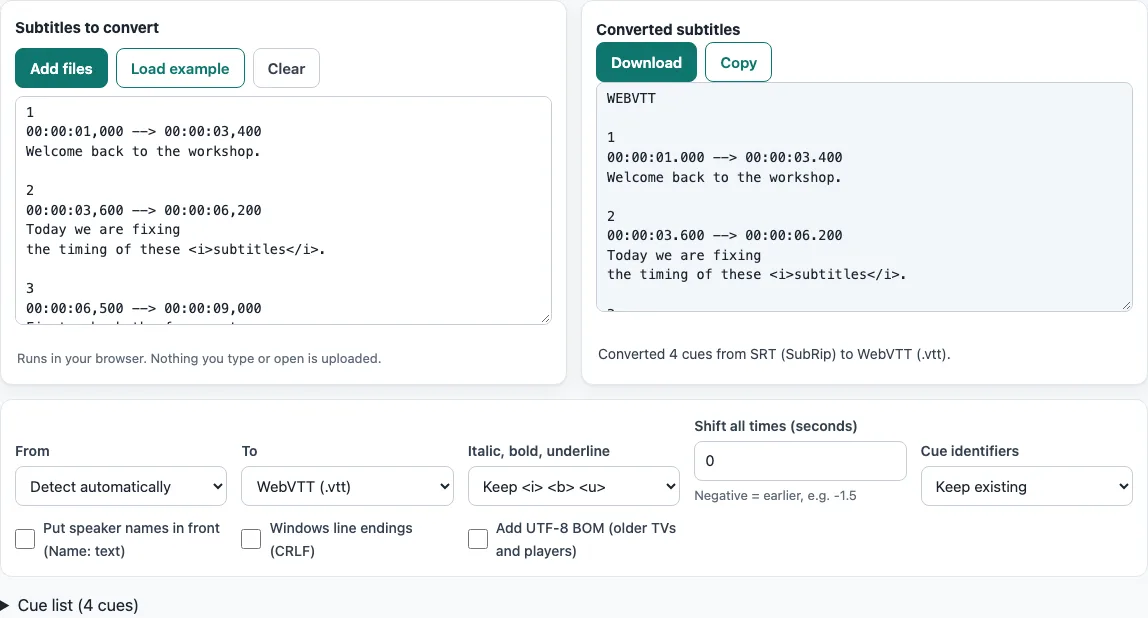
How to use the subtitle converter
- Look at the example already loaded in Subtitles to convert. The converted result is already shown in Converted subtitles, so you do not need to click anything first.
- To use your own file, click Add files and choose it, or drop the file onto the text box. You can also paste subtitle text into the box.
- In From, leave “Detect automatically” selected or pick the format your file is in.
- In To, pick the format you want. The default is “WebVTT (.vtt)”, and “Plain text (.txt)” is also available.
- Check the other settings if you need them: Shift all times (seconds), Cue identifiers, and the Italic, bold, underline list.
- Read the status line and the Notes list, if one appears, to see what was fixed or skipped. Open the Cue list table to check the timings.
- Click Download to save the file, or Copy to copy the text. The file is named after the file you opened, with the new extension, or
subtitlesplus the extension for pasted text.
If you added two or more files, click Download all to save each converted file. Each file is converted with the options as they are when you press the button. Load example puts the example back and Clear empties the box. The settings are kept in the page address, so a link to the page reproduces them.
Which formats can I convert?
You can read SRT (SubRip), WebVTT (.vtt), SBV (YouTube), ASS (Advanced SubStation) and TTML / DFXP (.xml) files. Choose the source in From, or leave it on “Detect automatically”. You can write the same five formats, plus “Plain text (.txt)”. Every format stores the same basic data: a start time, an end time and the text, so any listed pair can be converted.
How do I convert an SRT file to another format?
Each SRT cue is a number, a timing line with a comma before the milliseconds, one or more text lines, and a blank line. The converter reads each cue into a start time, an end time and its text. It then writes those values in the syntax of the target format. WebVTT, for example, uses a full stop before the milliseconds, as in 00:00:01.000. When the target is WebVTT, the SRT cue numbers can be kept as WebVTT identifiers with the Cue identifiers setting, which is set to “Keep existing” by default.
Does it convert closed captions?
It converts caption files saved in the text formats listed in From, such as SRT, WebVTT, SBV, ASS and TTML or DFXP. A .srt, .vtt, .sbv, .ass or .ttml file from a video platform or an editor can be converted here. Broadcast closed-caption formats such as SCC, STL or CEA-608 streams are not supported. It does not read captions built into a video stream, and it does not transcribe speech.
What is lost between formats?
Only cue text and timing are carried over. Positions, colours, fonts and karaoke effects are not carried over, and WebVTT cue settings are not converted. In ASS input, drawings, \pos positions, colours and animations are dropped. Italic, bold and underline are kept where the target allows them. Keep <i> <b> <u> keeps those three tags and removes every other tag when writing WebVTT, so <font> is removed there. SBV output has no tags, because YouTube accepts no style information. Plain text keeps the words only, with no timing. Check the Notes list after each conversion.
Can it shift the timing at the same time?
Yes. Shift all times (seconds) adds a number to every start and end time. Negative values move cues earlier, for example -1.5, and the step is 0.1. A cue that ends before 0:00 after the shift is removed, and a cue that starts before 0:00 starts at 0:00. The result line says how many cues were affected.
What about accents, Chinese or Japanese text?
Files are read correctly as UTF-8 and UTF-16, with or without a byte order mark, so accented letters and Chinese or Japanese characters are read as written, and the result is written as UTF-8. YouTube requires plain UTF-8 for SBV files. If an older TV or player shows garbled characters in the downloaded file, turn on Add UTF-8 BOM (older TVs and players).
Can I convert subtitles in bulk?
Yes. Click Add files and choose two or more files. A Converted files list then shows each file with its cue count and a Download button. Click Download all to save one download per file. All files use the same From and To settings and options.
Frequently asked questions
Is it free?
Yes. The converter is free and needs no sign-up, and there is no limit on the number of files.
Is my file uploaded?
No. Everything runs in your browser. Subtitle files and videos you open are never uploaded.
Can I keep speaker names?
Yes. Turn on Put speaker names in front (Name: text) and the speaker name is written as Name: before the text. This option is off by default. It uses the ASS Name field or the WebVTT voice name.
What do the Windows line endings and BOM options do?
Windows line endings (CRLF) makes every line break in the downloaded file CRLF, including line breaks inside a cue. Add UTF-8 BOM (older TVs and players) starts the file with the three bytes EF BB BF. Both options are off by default, so turn them on only when your device needs them.
What does the Cue list show?
The collapsible Cue list table shows the start, end, seconds and text for each cue. It lists the first 300 cues. Open it to check the timing after you use Shift all times (seconds).
What does the Notes list show?
The Notes list appears when the tool fixed or skipped something in your file, such as a missing cue number, a dot used instead of a comma in an SRT time, overlapping cues, cues out of order or empty cues. Read it before you use the converted file.
Related tools
- SRT to VTT converter: use this when your SRT captions must be saved as WebVTT.
- VTT to SRT converter: use this when a WebVTT file needs to open in a player that expects SRT.
- SBV to SRT converter: use this when you have a YouTube SBV file and want an SRT copy.
- ASS to SRT converter: use this when you have an ASS file and need plain cue text with timing.
- TTML to SRT converter: use this when your captions are in TTML and you want SRT.
- Subtitle file formats compared: read this to compare what each format can store before you choose a target.
- SRT file format and checker: use this to learn the SRT layout and check a file’s structure.
- Subtitle shifter: use this when you only need to move the timing of a file.